
How to send a fax on Windows – without a modem
Windows “Fax and Scan” needs a fax modem and a phone line. Without a modem, you fax with mcpfax directly in your browser at mcpfax.de, with Claude or by email from Outlook – from €1.00 per fax.
Step by step
-
1 Step 1
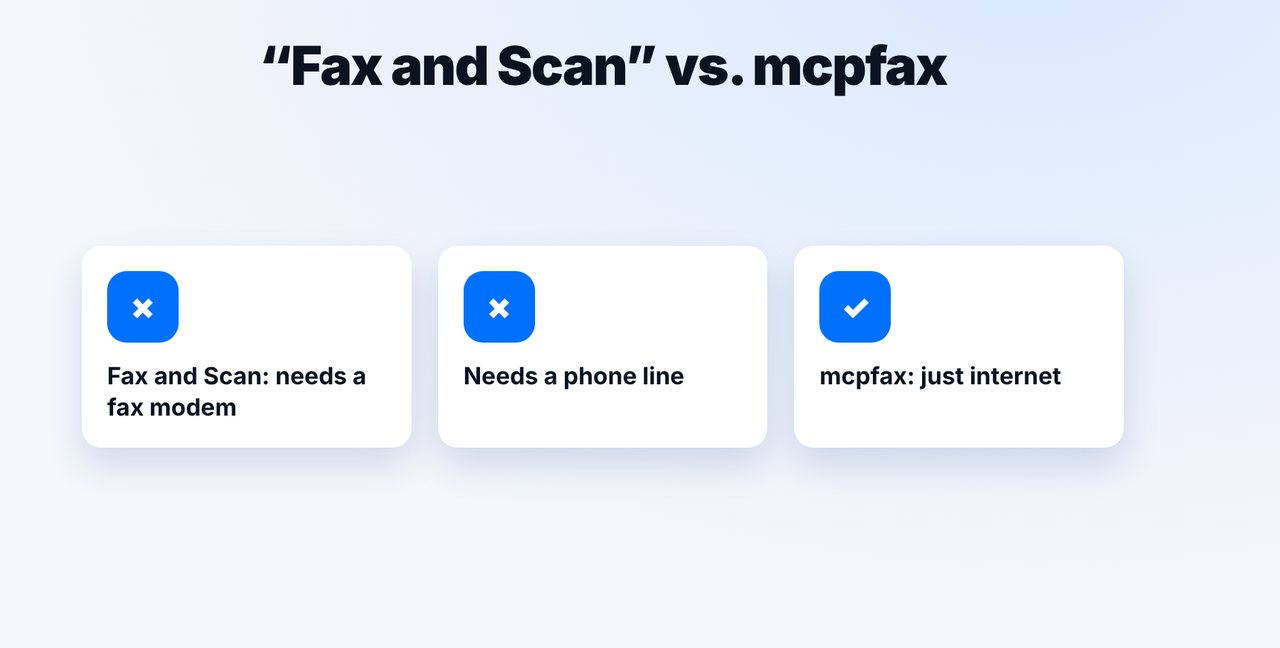
Why “Fax and Scan” isn't enough
The Windows app “Fax and Scan” needs a fax modem and a phone line. mcpfax only needs internet.
-
2 Step 2
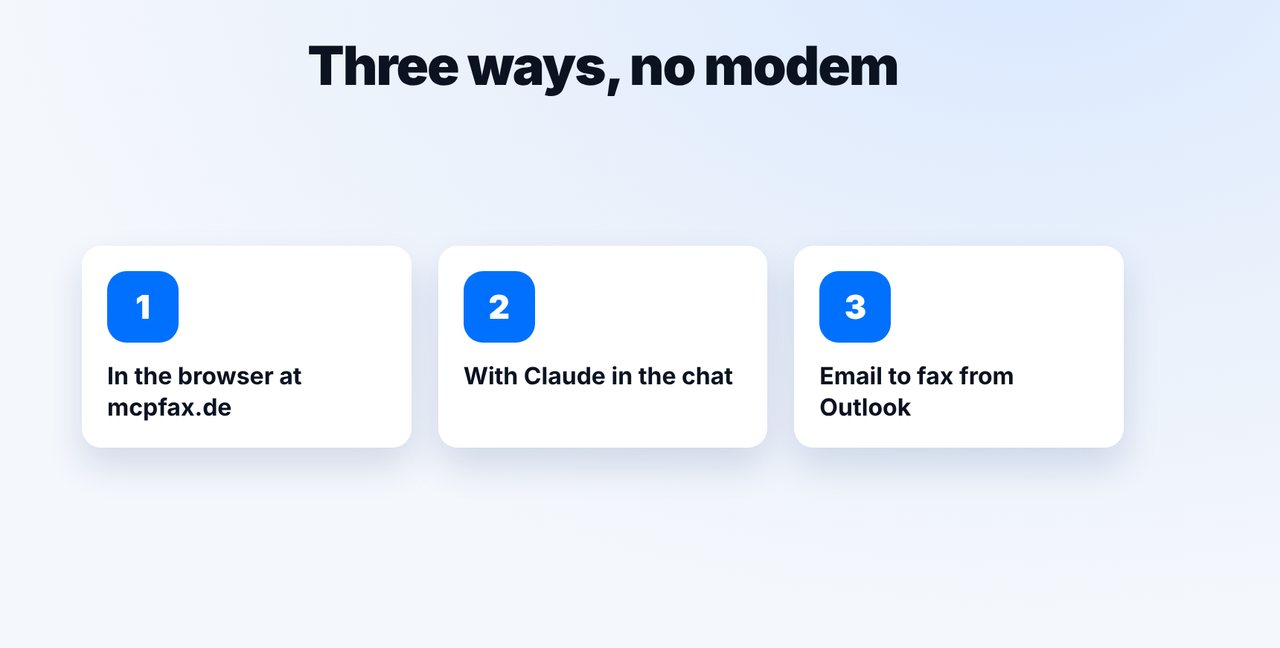
Choose your way
Directly at mcpfax.de in your browser (“Send a fax in 3 steps”, even without an account), with Claude in the browser or the desktop app, or by email to fax from Outlook.
-
3 Step 3
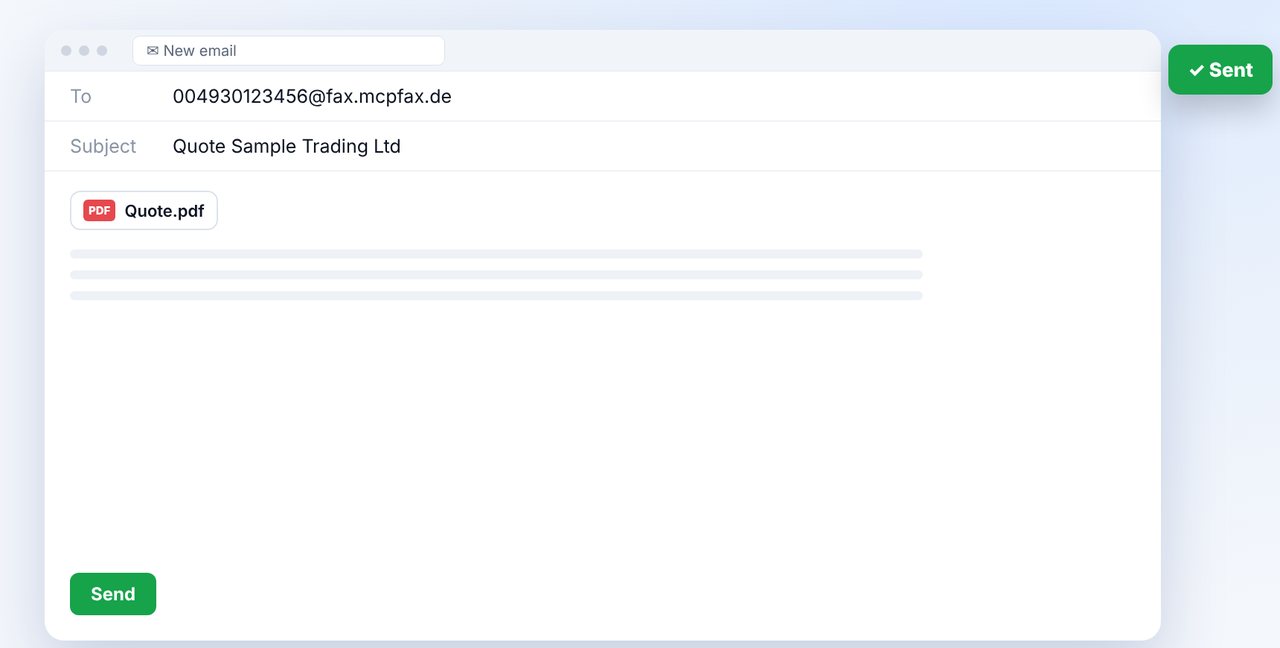
Fax from Outlook
New email to faxnumber@fax.mcpfax.de, for example 004930123456@fax.mcpfax.de, attach the document, send. Your sender address must be allowed.
-
4 Step 4
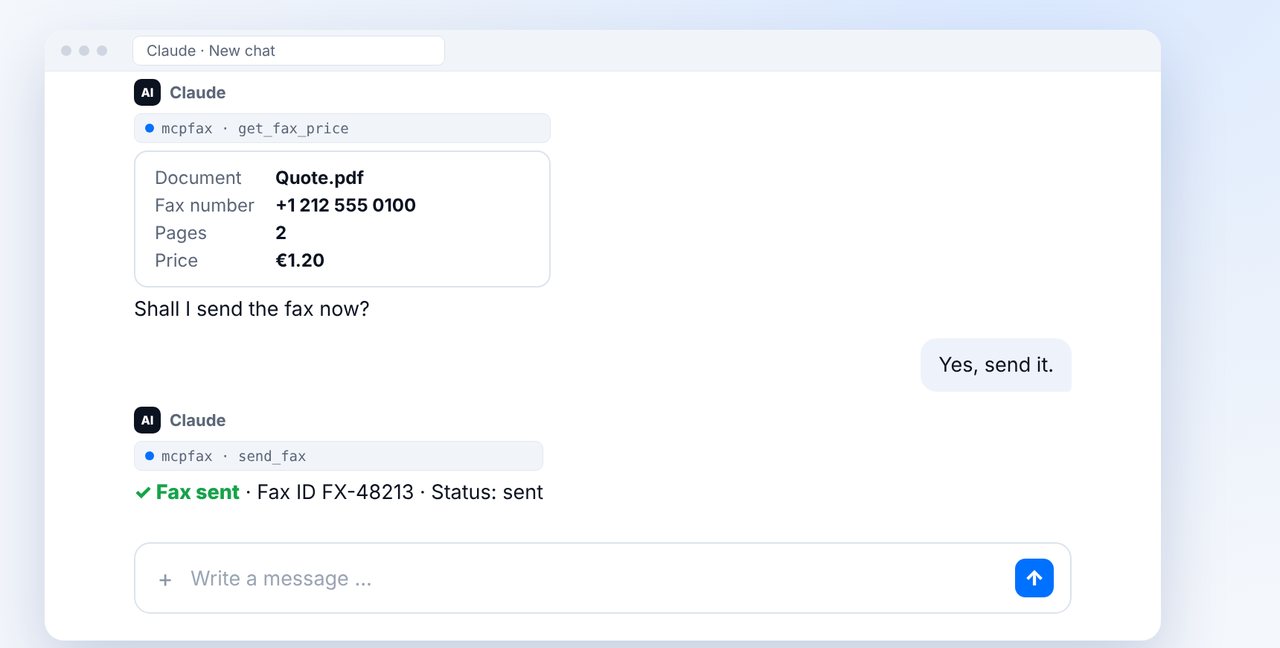
Or fax with Claude
Attach the file in the chat, give the fax number, check the pages and price, and confirm with “Yes”.
The pictures are a simplified illustration. Menu names may differ slightly depending on the version.
Video transcript
Yes, you can send a fax on Windows, even without any modem: directly in your browser, with Claude or by email from Outlook. Let me show you how it works. Many people know the Windows app Fax and Scan. But it needs a fax modem and a phone line, and most computers today have neither. mcpfax only needs an internet connection. With mcpfax, you have three ways: directly on the website in your browser, even without an account. With Claude in the browser or the desktop app. Or by email from Outlook. In Outlook, write a new email to the fax address on screen, attach the document and send it. Beforehand, you allow your sender address once in your customer area. Or you attach the file directly in Claude and give the number. You see the pages and the price, confirm with yes, and the fax is on its way. You'll find the link to mcpfax in the description. Subscribe to the channel for more guides all about faxing.
Ready for your first fax?
Create your account in a minute, top up your balance and get started. No subscription, no monthly fee.
Create free accountFrequently asked questions
Do I need a fax modem on Windows?
For “Fax and Scan”, yes. With mcpfax, no – you only need internet.
Does this work on Windows 10 and 11?
Yes. You use your browser, the Claude desktop app or your email program, so the Windows version doesn't matter.
Can I receive faxes on Windows?
Not with mcpfax. mcpfax only sends faxes and doesn't have a fax number of its own.