
How do I fax from an Android phone?
On Android, you fax in the Claude app: attach a file or photo, give the fax number, confirm. Or write an email in the Gmail app to faxnumber@fax.mcpfax.de – from €1.00 per fax, no fax app.
Step by step
-
1 Step 1
One-time setup
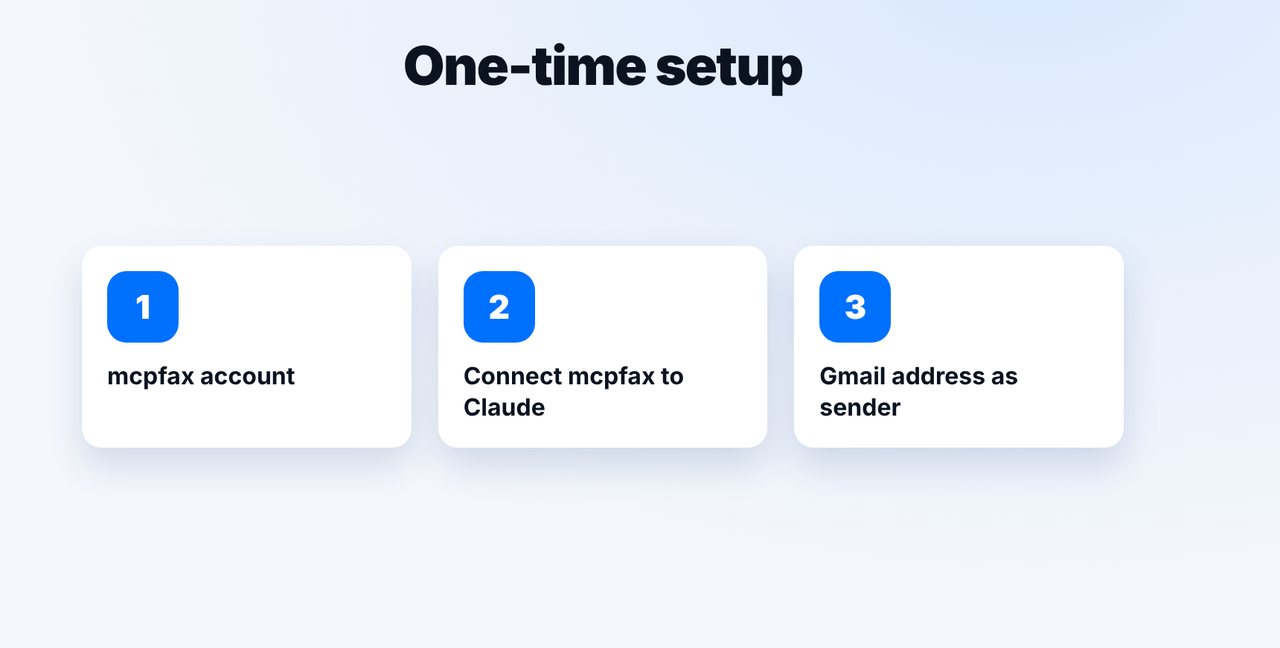
Create an account at mcpfax.de, connect mcpfax to Claude once and, for the email method, add your Gmail address as an approved sender.
-
2 Step 2
Send in the Claude app
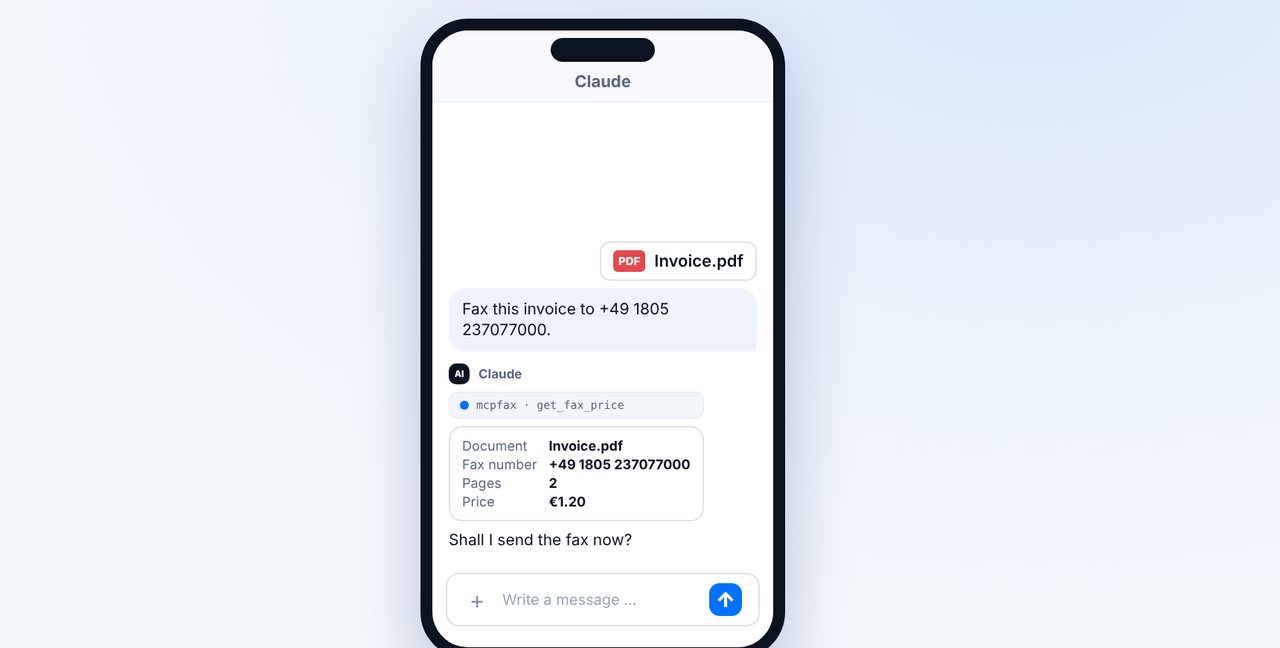
Attach a file or photograph the document and give the fax number. Claude shows the pages and price.
-
3 Step 3
Confirm
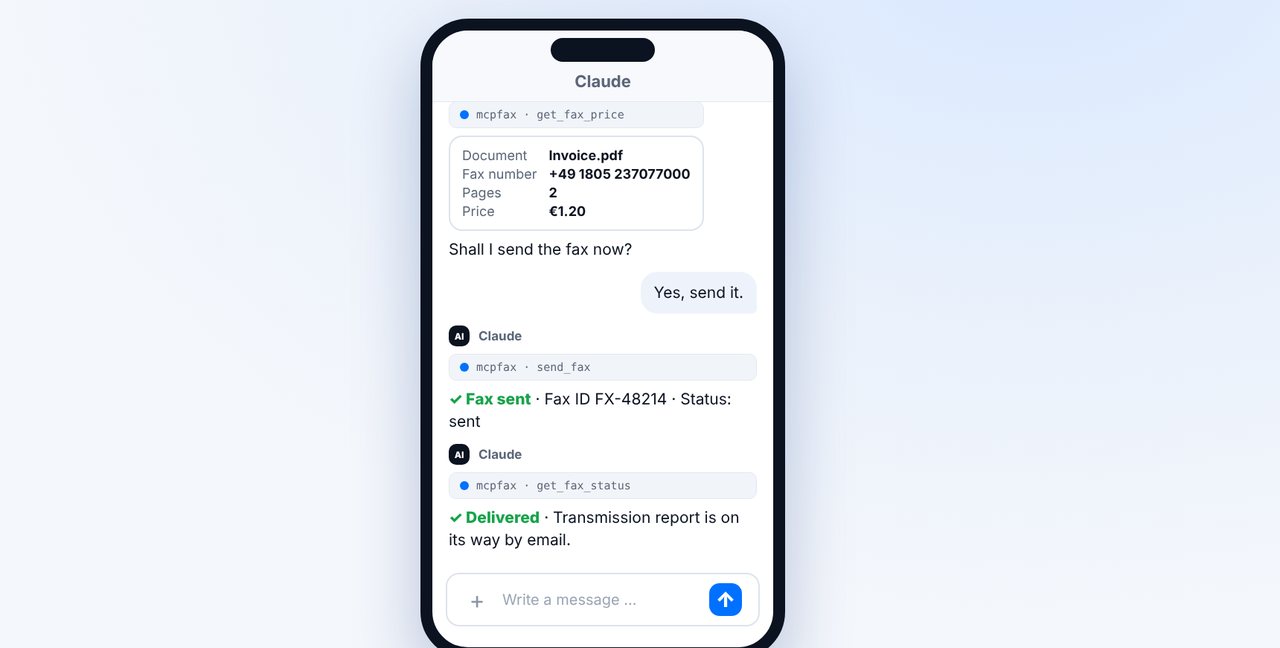
After “Yes, send it.” the fax is sent. You see the status “delivered” in the chat.
-
4 Step 4
Alternative: Gmail app
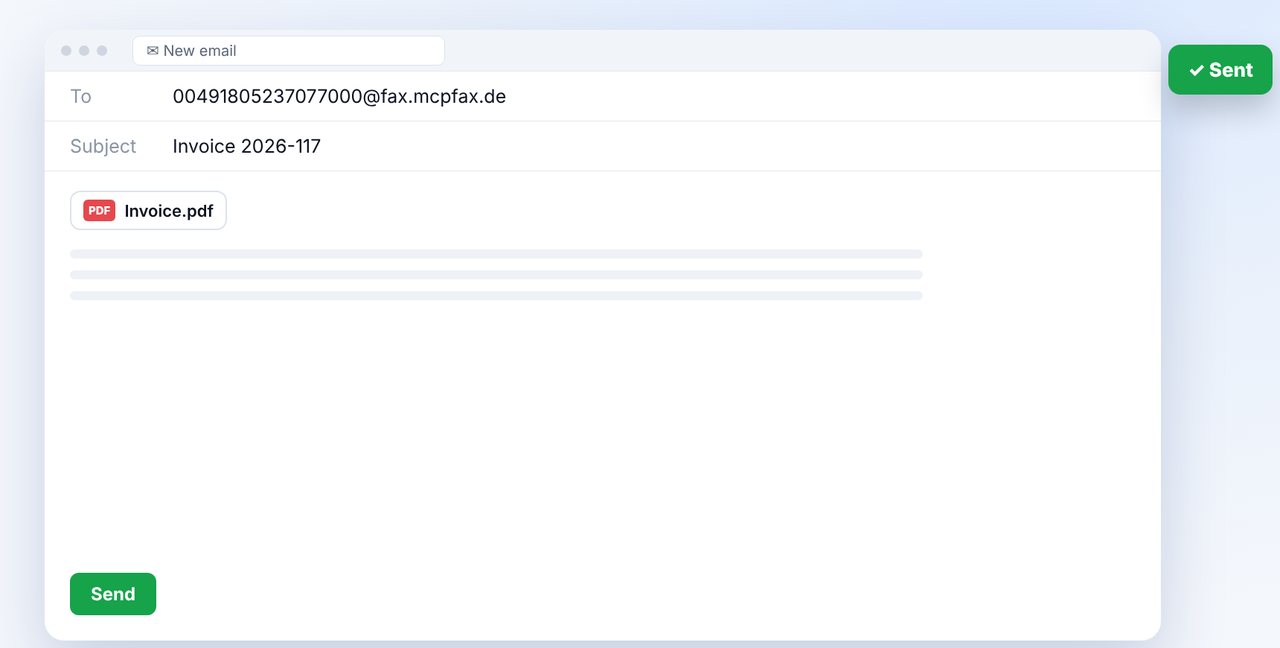
New email to faxnumber@fax.mcpfax.de, attach the document, send. If confirmation is turned on, you first get an email with the price and a button.
The pictures are a simplified illustration. Menu names may differ slightly depending on the version.
Video transcript
Yes, you can fax with your Android phone, without a fax machine and without a fax app: in the Claude app or via Gmail. Let me show you how it works. Just once, you create an mcpfax account and connect it to Claude. If you'd also like to fax via Gmail, add your address as an approved sender in the customer area. If the document is already a PDF on your phone, simply attach it in the Claude app and give the fax number. Claude shows two pages for one euro twenty. A quick confirmation, and the fax is on its way. You see the status delivered right in the chat. The second way: in the Gmail app, write a new email to the fax address shown on screen, with the fax number and country code before the at sign. Attach the invoice and send. If confirmation is turned on, you first get an email with the page count and price. One tap on the button, and the fax is sent. After that, the transmission report arrives. You'll find the link to mcpfax in the description. Subscribe to the channel so you never miss a new guide.

Ready for your first fax?
Create your account in a minute, top up your balance and get started. No subscription, no monthly fee.
Create free accountFrequently asked questions
Which Android phones work?
Any Android phone that runs the Claude app or an email app such as Gmail.
Can I fax a photo?
Yes. Photos (JPG, PNG) become a fax page; PDF, Word and TXT work too.
Can I receive faxes on my phone?
No. mcpfax only sends and does not assign a fax number for receiving.