
How do I send a fax from a PC or laptop?
On a PC, you fax in the browser right on mcpfax.de (even without an account), with Claude, or by email to faxnumber@fax.mcpfax.de from Outlook or Gmail: upload the file, give the number, send. No modem or fax machine, from €1.00.
Step by step
-
1 Step 1
What you need
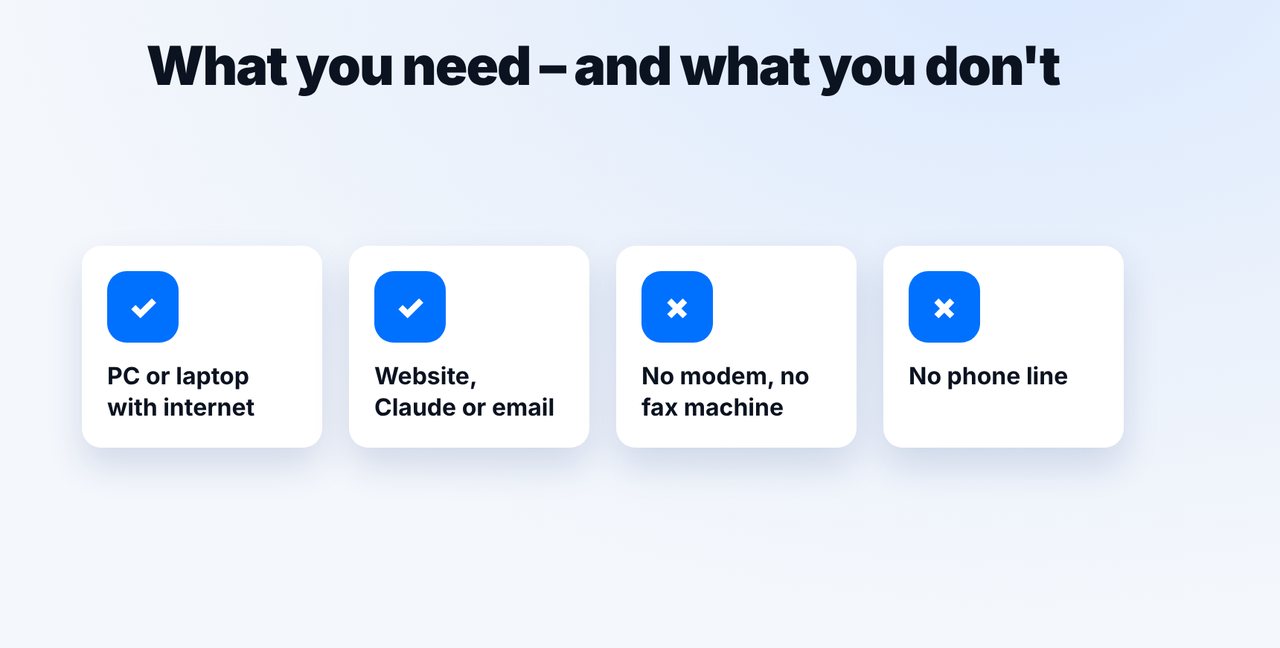
A PC or laptop with internet. The quickest way is right on mcpfax.de (“Send a fax in 3 steps”, even without an account). No modem, fax machine or phone line needed.
-
2 Step 2
Attach the file in Claude
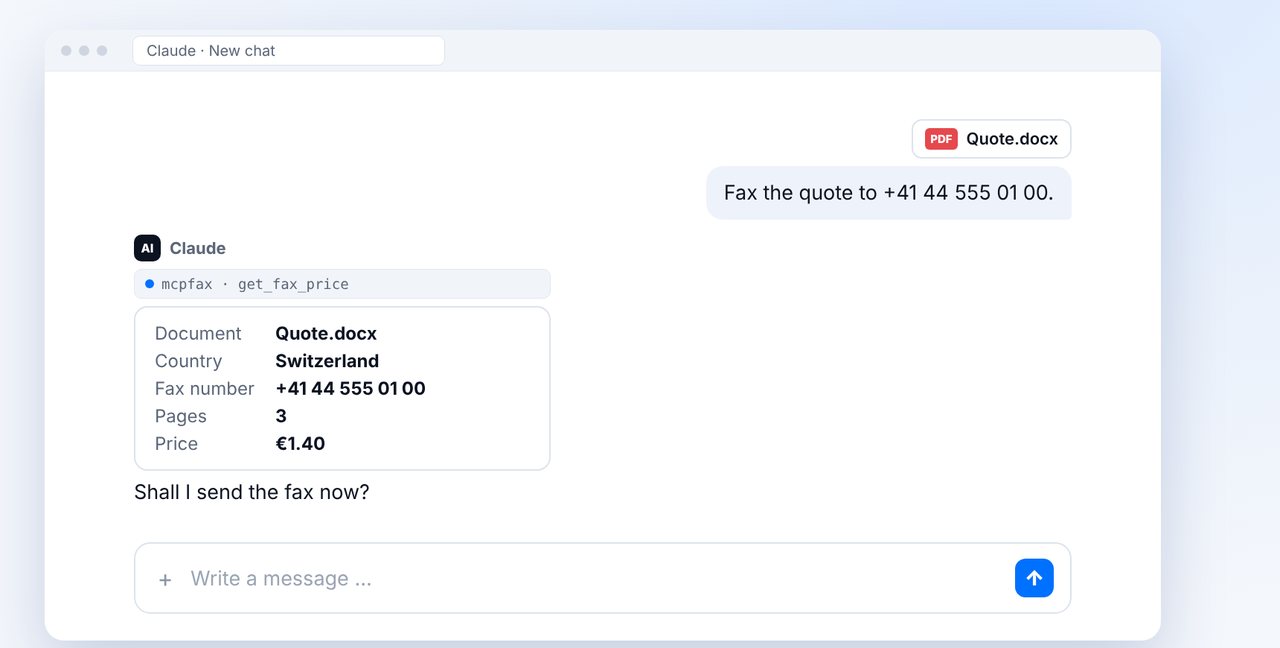
In the browser or the Claude desktop app, attach the document (PDF, DOCX, JPG, PNG, TXT) and give the fax number with country code. Claude shows the pages and price.
-
3 Step 3
Confirm
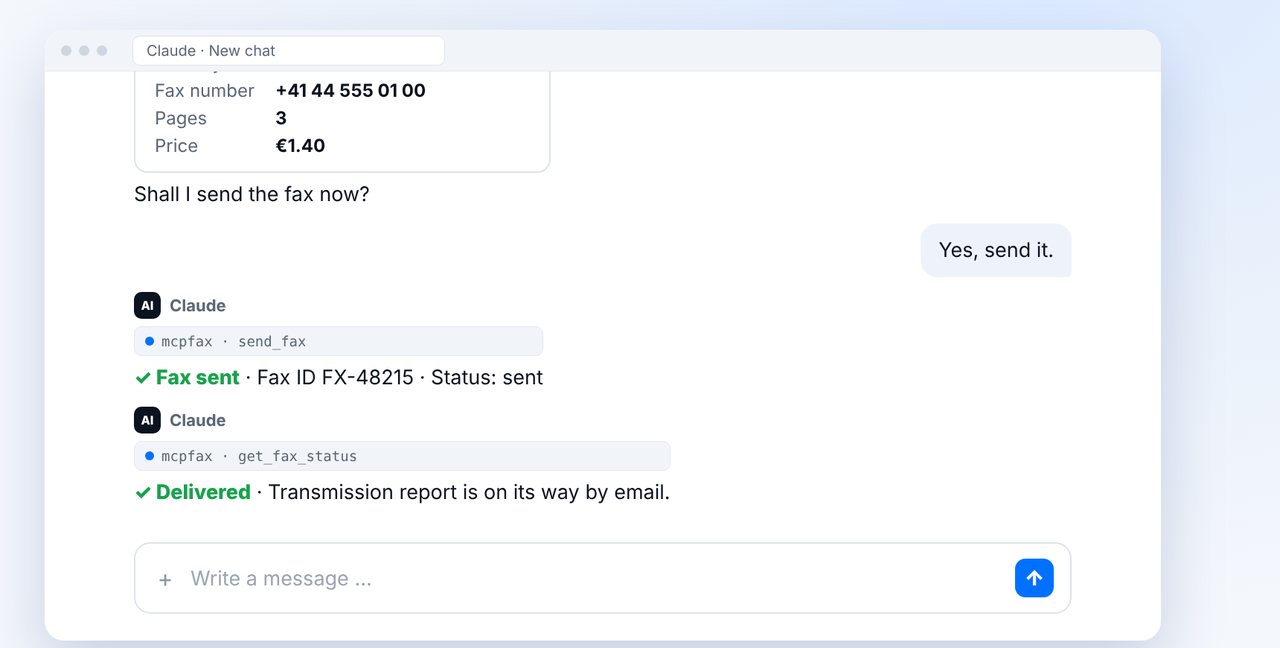
After “Yes, send it.” the fax is sent; you can ask for the status in the chat.
-
4 Step 4
Or from your email program
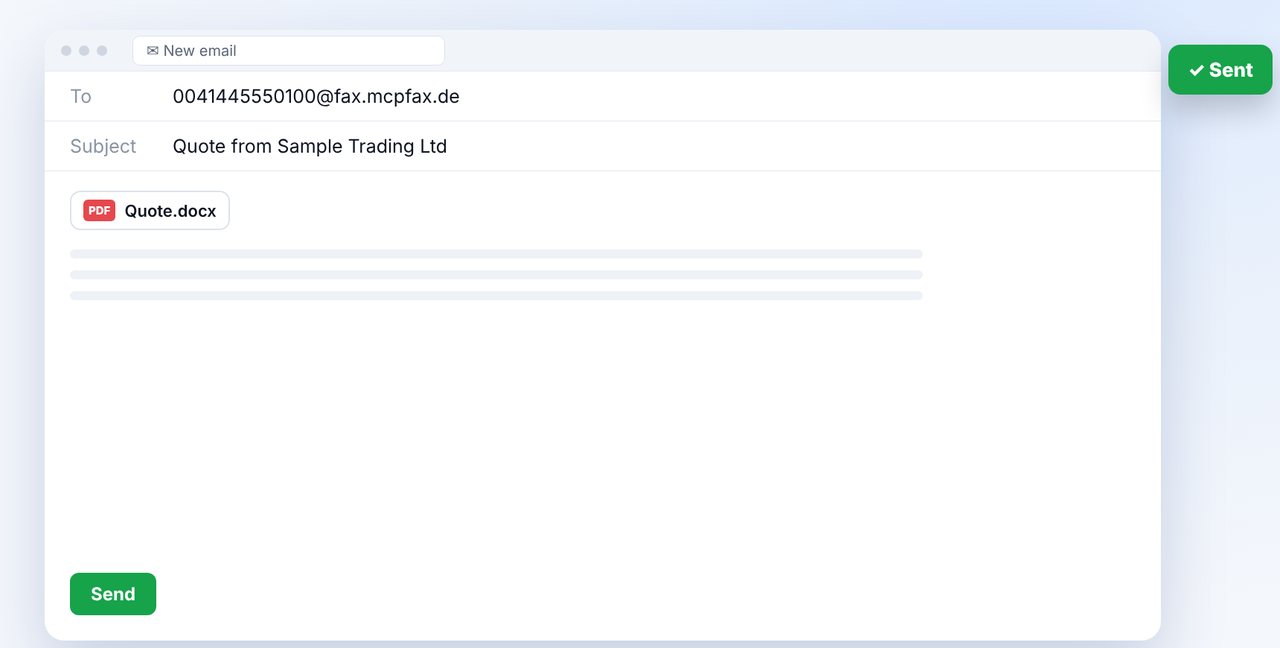
Send an email from Outlook, Gmail or Apple Mail to faxnumber@fax.mcpfax.de and attach the document. The sender must be approved.
The pictures are a simplified illustration. Menu names may differ slightly depending on the version.
Video transcript
Yes, you can send a fax straight from your PC or laptop, without a modem and without a fax machine. Let me show you how it works with Claude or by email. All you need is a computer with internet. You can fax right in the browser on our website, even without an account, with Claude, or by email. You don't need a modem, a fax machine or a phone line. Open Claude in the browser or the desktop app, attach the file and give the number, here to Switzerland. Claude shows you the country, the pages and the price. You confirm, and Claude sends the fax. A few moments later, you can ask whether it has been delivered. Prefer your email program? Then write from Outlook or Gmail to the fax address shown on screen and attach the document. Just approve your sender address with mcpfax beforehand. Finally, you get the transmission report as a PDF. It shows the recipient, pages, cost and result. On your PC, you simply file it with the rest of the paperwork. You'll find the link to mcpfax in the description. Subscribe to the channel for more step-by-step guides on faxing.
Ready for your first fax?
Create your account in a minute, top up your balance and get started. No subscription, no monthly fee.
Create free accountFrequently asked questions
How do I fax from my computer?
Open Claude in your browser, attach the file and give the fax number – or send an email to faxnumber@fax.mcpfax.de. You don't need a modem, a driver or a fax machine.
Does it work with “Windows Fax and Scan”?
Only with a fax modem and an analog phone line, which hardly any PC has today. An online fax service only needs internet.
Do I need fax software or a driver?
No. You use Claude in the browser, the Claude desktop app or your email program.
Does it work on a Mac?
Yes. The mcpfax.de website, Claude in the browser and email-to-fax work on any computer with internet.
What appears at the top of my fax?
Your sender ID. You set it in your account (max. 20 characters), e.g. your number or your company name.
How many pages can I fax?
Up to 100 pages per fax, files up to 15 MB.