
How to send a fax from your phone
Take a photo of the form, name the recipient, confirm: that's how you fax from an iPhone or Android phone – no fax machine and no separate fax app.
Step by step
-
1 Step 1
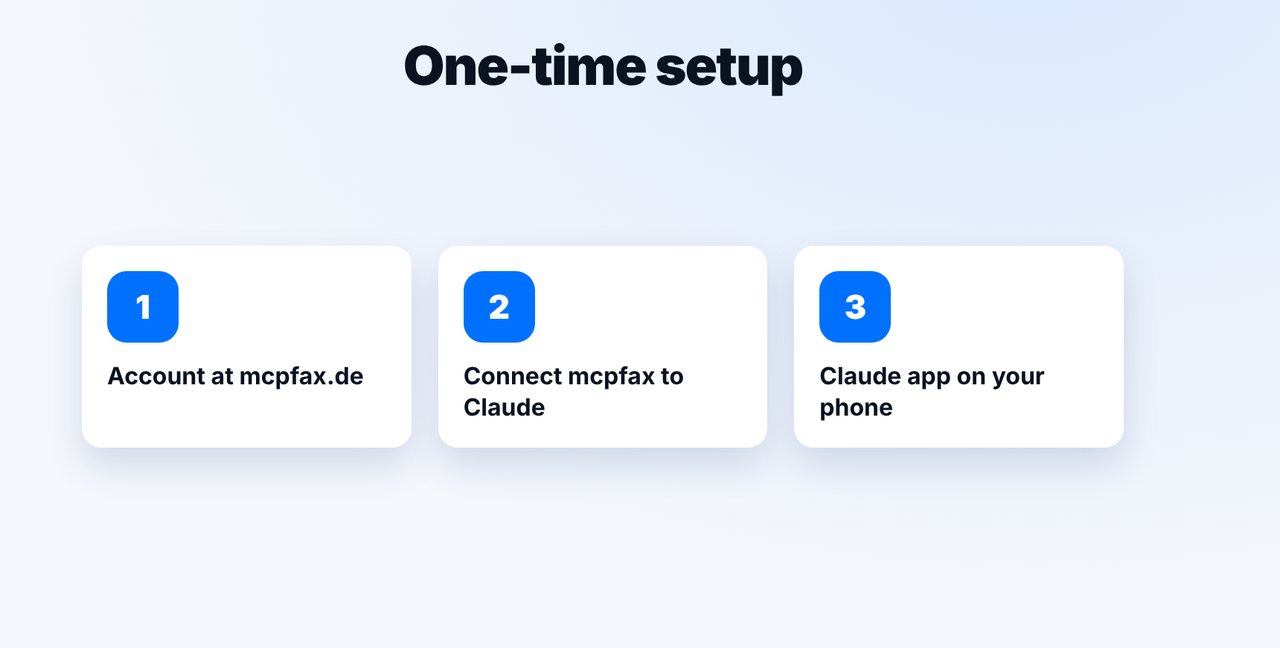
One-time setup: connect mcpfax
Create an account at mcpfax.de and connect mcpfax to Claude once on your computer (see the setup guide). After that, mcpfax is also available in the Claude app on your phone.
-
2 Step 2
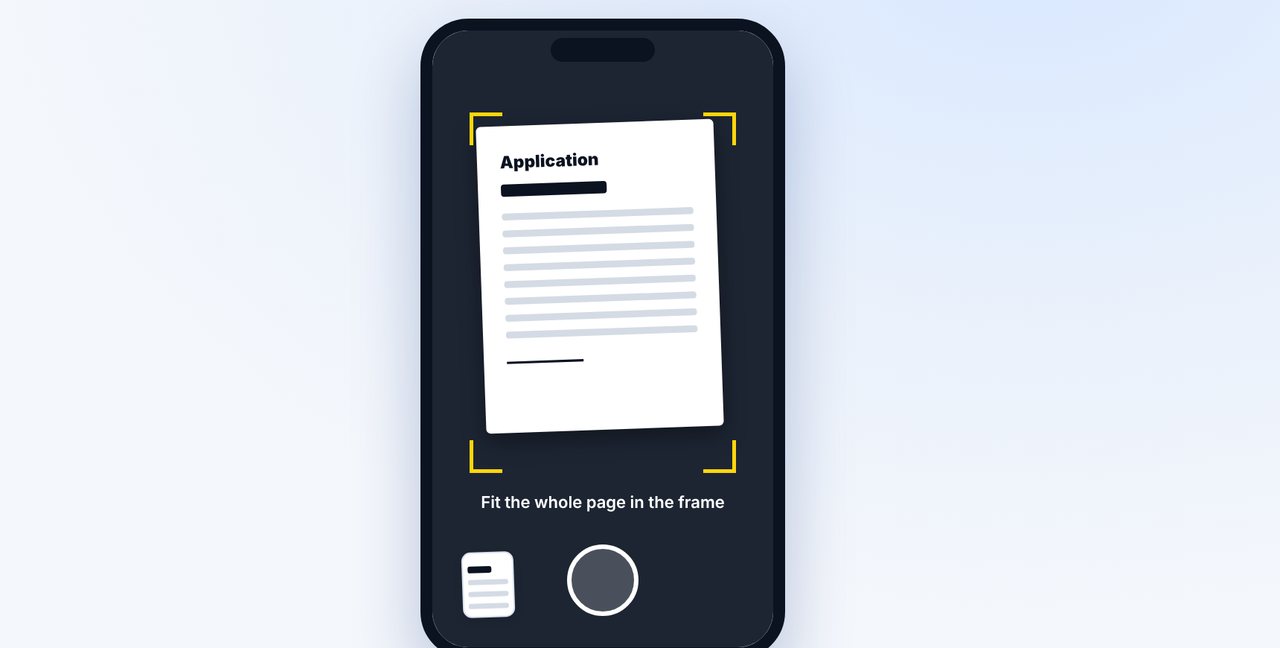
Photograph the document
Open a new chat in the Claude app, tap the plus button and take a photo of the document. Use good lighting and fit the whole page in the frame.
-
3 Step 3
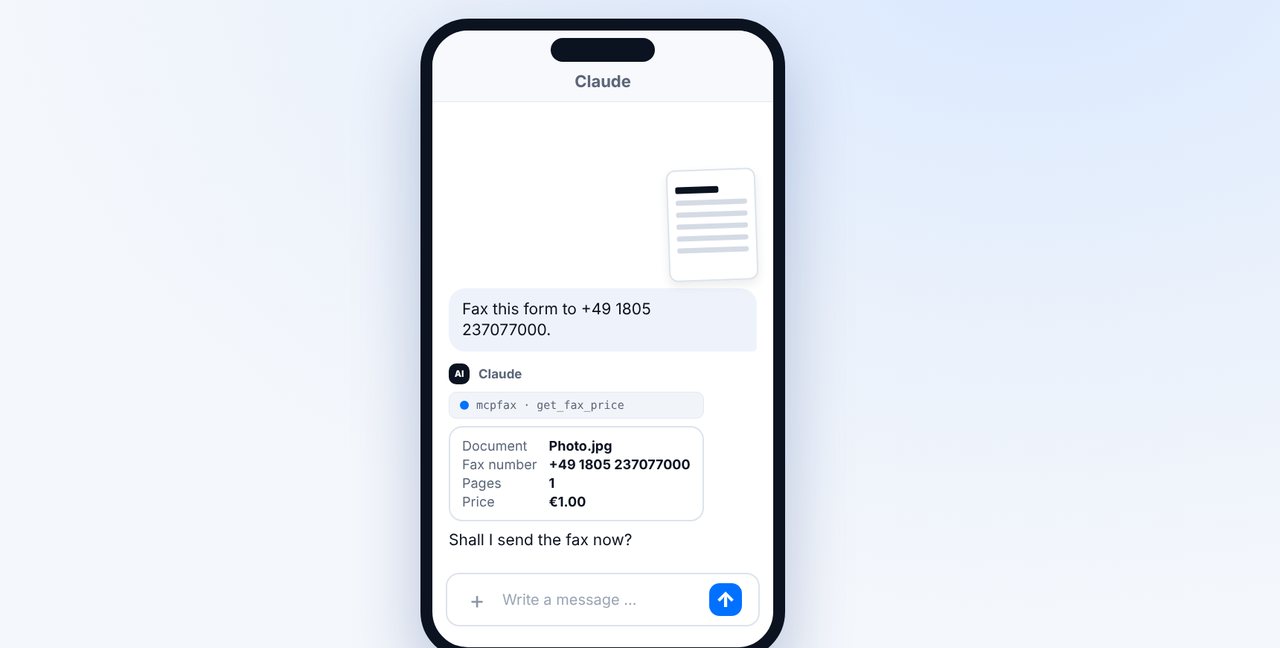
Give the fax number and check the price
Add which fax number it should go to. mcpfax turns the photo into a fax page, and Claude shows you the pages and price beforehand.
-
4 Step 4
Confirm – done
Reply with “Yes”. The fax is sent, and you receive the transmission report as a PDF by email.
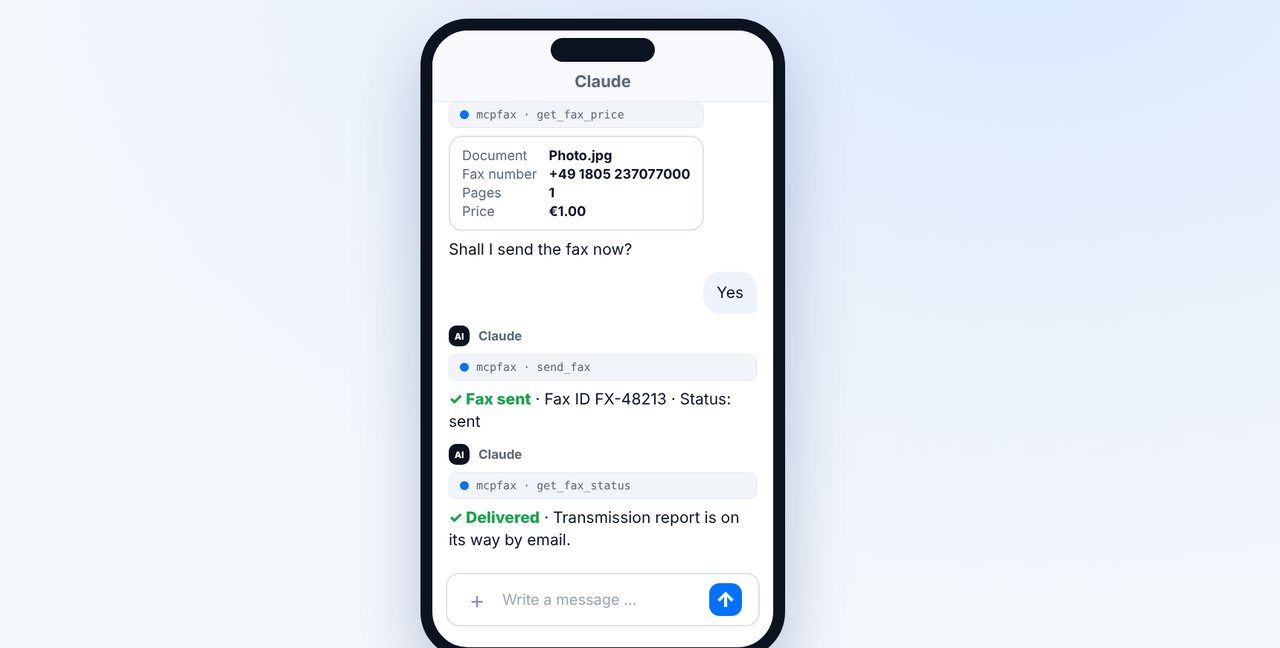
The pictures are a simplified illustration. Menu names may differ slightly depending on the version.
Video transcript
You need to fax a form quickly, but you're not at your computer? With your phone it takes about a minute, on an iPhone just as well as on Android. Let me show you how it works. Just once, you need an mcpfax account and the connection to Claude. You set that up on your computer, as shown in our setup guide. After that, mcpfax is also ready to use in the Claude app on your phone. Open a new chat in the Claude app, tap the plus button and take a photo of your document. Make sure the lighting is good and the whole page fits in the frame. Then write which number the fax should go to. mcpfax turns the photo into a clean fax page, and Claude shows you the page count and the price before anything is sent. Tap yes, and the fax is on its way. You'll receive the transmission report as a PDF by email, straight to your phone. Two more tips: if the document is already a PDF on your phone, simply attach the file instead of a photo. And save frequent recipients as contacts, so next time their name is all you need. You'll find the link to mcpfax in the description. Subscribe to the channel for more guides on sending faxes.

Ready for your first fax?
Create your account in a minute, top up your balance and get started. No subscription, no monthly fee.
Create free accountFrequently asked questions
Can I fax from my phone?
Yes. You photograph the document or attach a PDF, give the fax number and confirm the price. The fax goes out over the internet – no fax machine and no fax app.
Are there phone charges when I fax from my phone?
No. Your phone only uses Wi-Fi or mobile data. mcpfax connects to the recipient's fax machine, and you only pay the fax price from €1.00.
Do I need a fax app?
No. You use the Claude app, which you may already have. mcpfax is connected once as a connector.
Does this work on iPhone and Android?
Yes, on both – anywhere the Claude app runs.
How much does a fax from my phone cost?
The same as from a computer: from €1.00 for the first page and €0.20 for each additional page. No subscription.