
Fax sender ID: what does the recipient see?
The recipient sees your document and the sender ID at the top of every fax. With mcpfax you set the ID in your account (max. 20 characters, e.g. company name or your own number); the transmission report shows it in the “Header ID” field.
Step by step
-
1 Step 1
Know what arrives
The recipient sees your document page by page, with your sender ID at the top of every sheet.
-
2 Step 2
Set the ID in your account
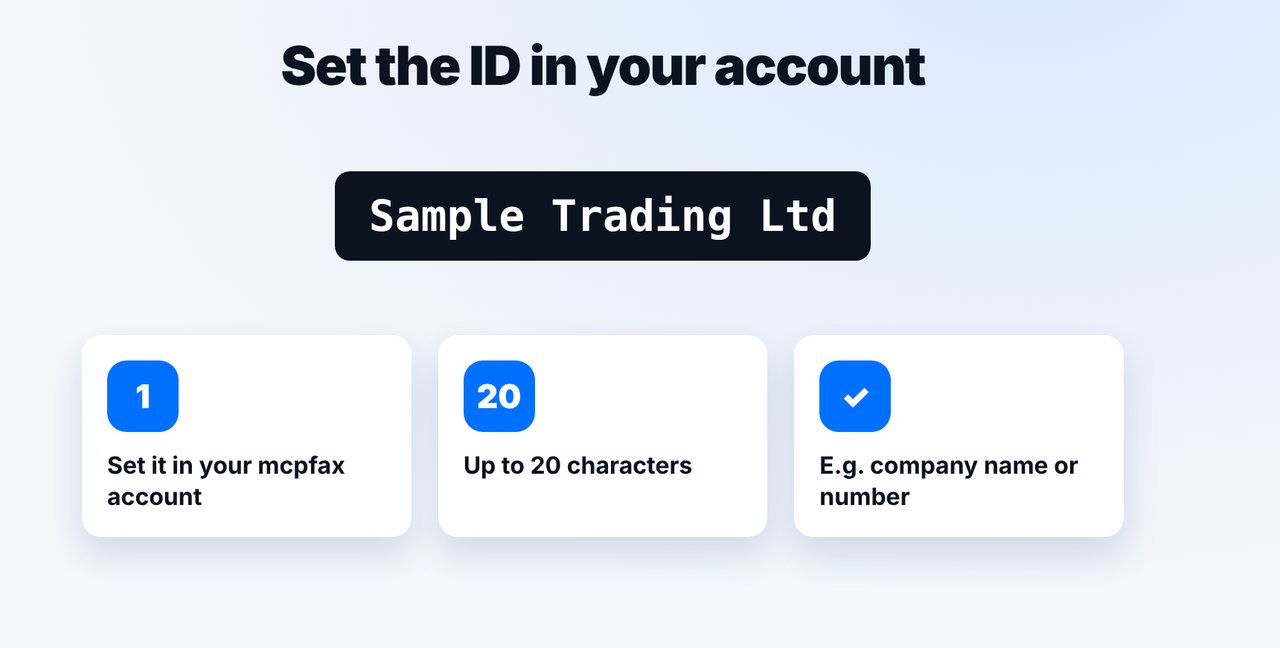
Enter an ID of up to 20 characters in your mcpfax account, for example your company name or your own number.
-
3 Step 3
Check it in the transmission report
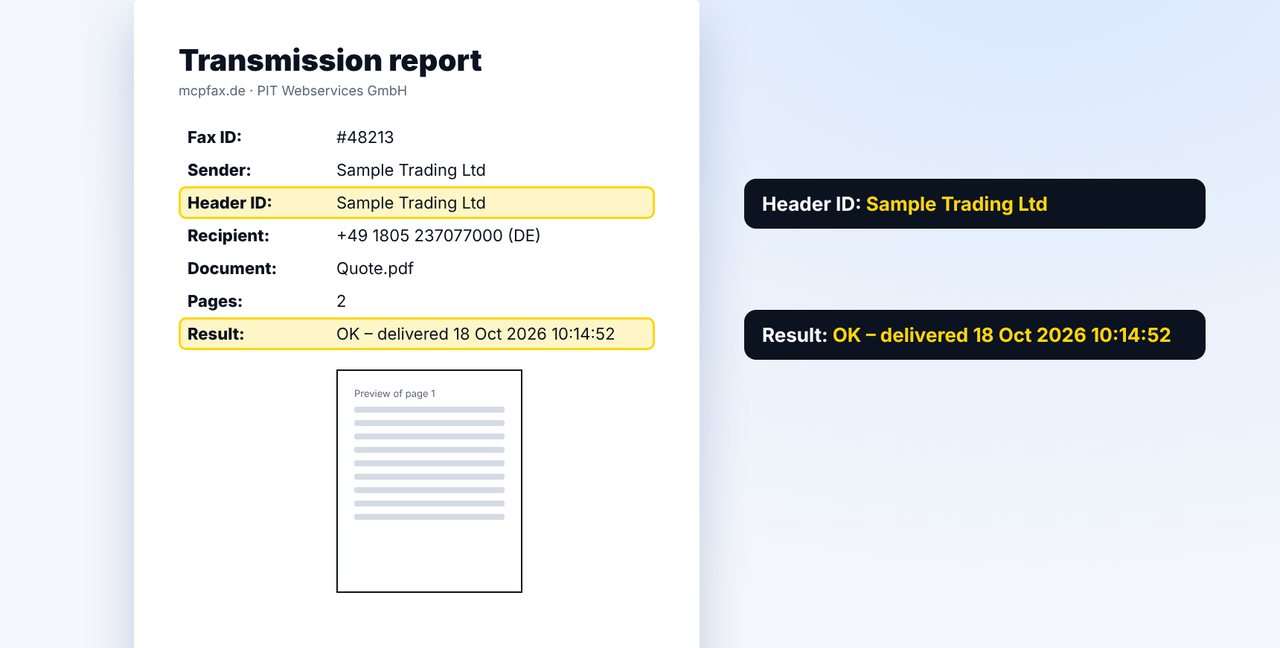
After every fax, the transmission report shows what was sent in the “Header ID” field.
-
4 Step 4
Put contact details on the document
Your name, phone and email also belong on the document or a cover sheet – replies by fax to mcpfax are not possible.
The pictures are a simplified illustration. Menu names may differ slightly depending on the version.
Video transcript
What does the recipient see when you send a fax? Your document, and your sender ID at the top of every page. With mcpfax, you set that yourself. Let me show you how. The recipient sees your document page by page, and your sender ID at the very top. Important: mcpfax only sends. A reply fax to you via mcpfax isn't possible. You set the ID in your mcpfax account. Up to twenty characters are allowed, for example your company name or your own phone number. It then appears at the top of every fax. Which ID was sent, you can see after every fax in the transmission report, in the header ID field. Next to it are the recipient number, the pages and the result of the transmission. The ID is short. So also put your name, company and contact details on the document or on a cover sheet. A customer number on every page helps the recipient file it. You'll find the link to mcpfax in the description. Tips on cover sheets and timing are in our video on fax etiquette. Subscribe to the channel.

Ready for your first fax?
Create your account in a minute, top up your balance and get started. No subscription, no monthly fee.
Create free accountFrequently asked questions
Can I set the sender ID myself?
Yes. In your mcpfax account you set an ID of up to 20 characters, such as your company name or your own number. It appears at the top of every fax.
Where can I see which ID was sent?
In the transmission report, in the “Header ID” field. You receive the report after every fax as a PDF by email and in your customer area.
Can the recipient reply to me by fax?
Not via mcpfax – mcpfax only sends and has no fax number of its own for receiving. Give a phone number or email address in the document for replies.