
How to send a fax by email
Fax number before the @, attach the document, hit send: with email to fax you can fax straight from Outlook, Gmail or your scanner.
Step by step
-
1 Step 1
One-time setup: enable email to fax
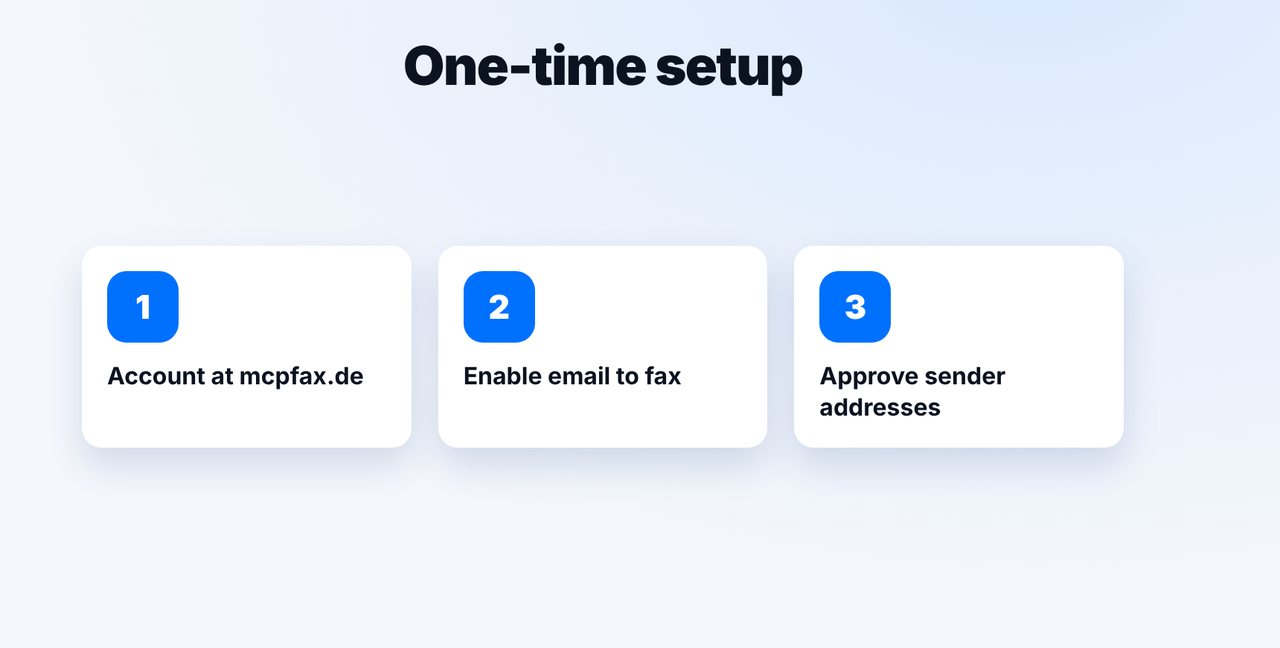
Create an account at mcpfax.de, enable email to fax in your customer area and approve the sender addresses you want to fax from.
-
2 Step 2
Write the address correctly
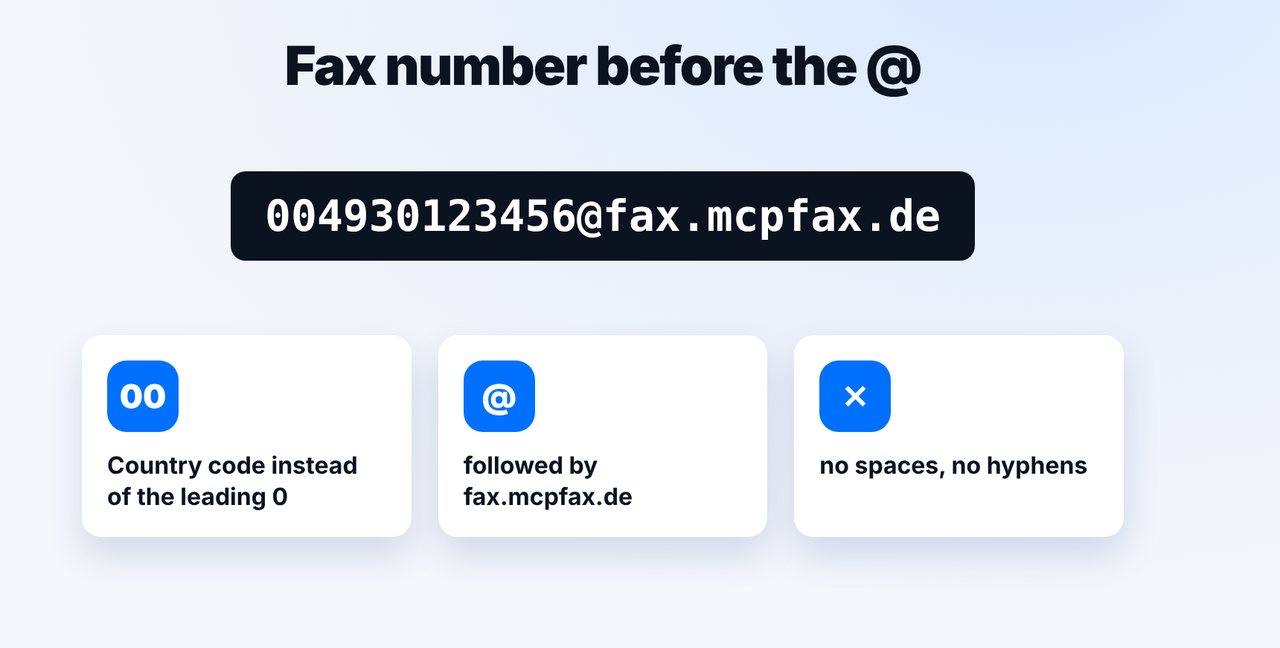
Fax number with country code (00 or +) before the @, followed by fax.mcpfax.de – no spaces or hyphens. Example: 004930123456@fax.mcpfax.de.
-
3 Step 3
Attach the document and send
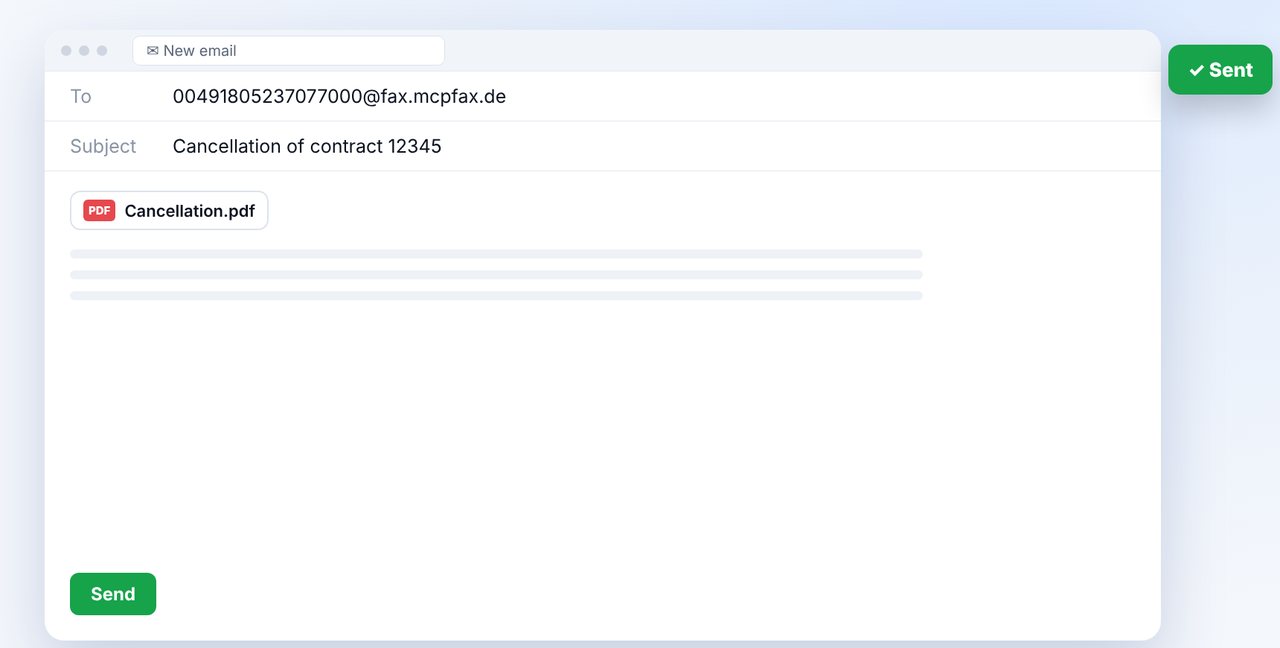
Write a new email to this address, attach the document (PDF, DOCX, JPG, PNG or TXT) and send it. The subject line appears in your fax history.
-
4 Step 4
Confirm and get the transmission report
If confirmation is enabled, you receive an email with the page count and price – one click and the fax goes out. Afterwards the transmission report arrives by email.
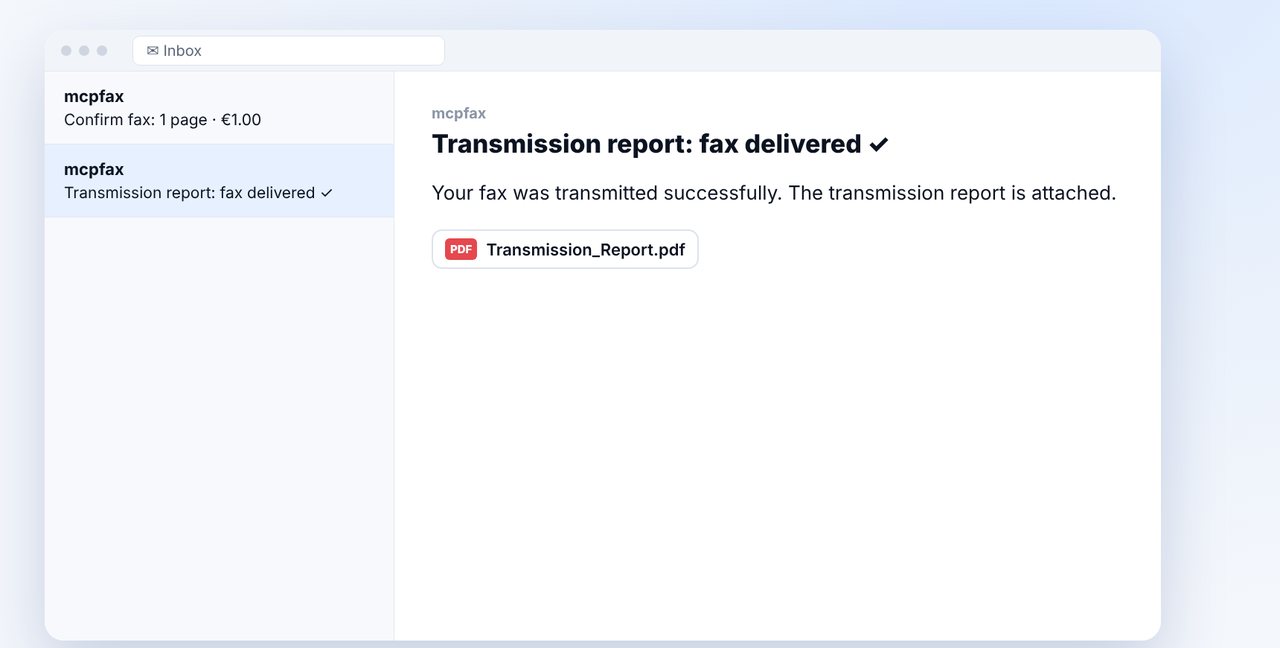
The pictures are a simplified illustration. Menu names may differ slightly depending on the version.
Video transcript
Want to send a fax just like a normal email, from Outlook, Gmail or straight from your scanner? With the email to fax feature from mcpfax, it only takes a few steps. Just once, you create an account at mcpfax.de, enable email to fax in your customer area and approve the email addresses you want to fax from. For security reasons, emails from any other address are not faxed. The address is simple: before the @ goes the recipient's fax number with the country code, so with double zero or plus instead of the leading zero. After that comes our fax domain, which you can see here on screen. Please leave out spaces and hyphens. Write a new email to this address, attach the document, for example a PDF or a Word document, and send it. The subject line will later appear in your fax history. If confirmation is enabled, you immediately receive an email with the page count and the price. One click, and the fax goes out. Once it has been transmitted, the transmission report arrives by email. Handy for multifunction printers: set up scan to email with the fax address as the destination, and approve the device's sender address. And if there's no attachment, the text of the email is simply faxed. You'll find the link to mcpfax in the description. Subscribe to the channel for more guides on sending faxes.
Ready for your first fax?
Create your account in a minute, top up your balance and get started. No subscription, no monthly fee.
Create free accountFrequently asked questions
Which addresses can I fax from?
Only from approved senders: the account holder, team members and addresses you add in your customer area, e.g. your scanner. Emails that fail SPF/DKIM checks are discarded.
Which file types work?
PDF, DOCX, JPG, PNG and TXT – up to 10 attachments, 15 MB in total. Multiple attachments are combined into one fax in alphabetical order.
What happens if there's no attachment?
Then the text of the email is faxed.