
Send a fax from a Mac – without a modem or phone line
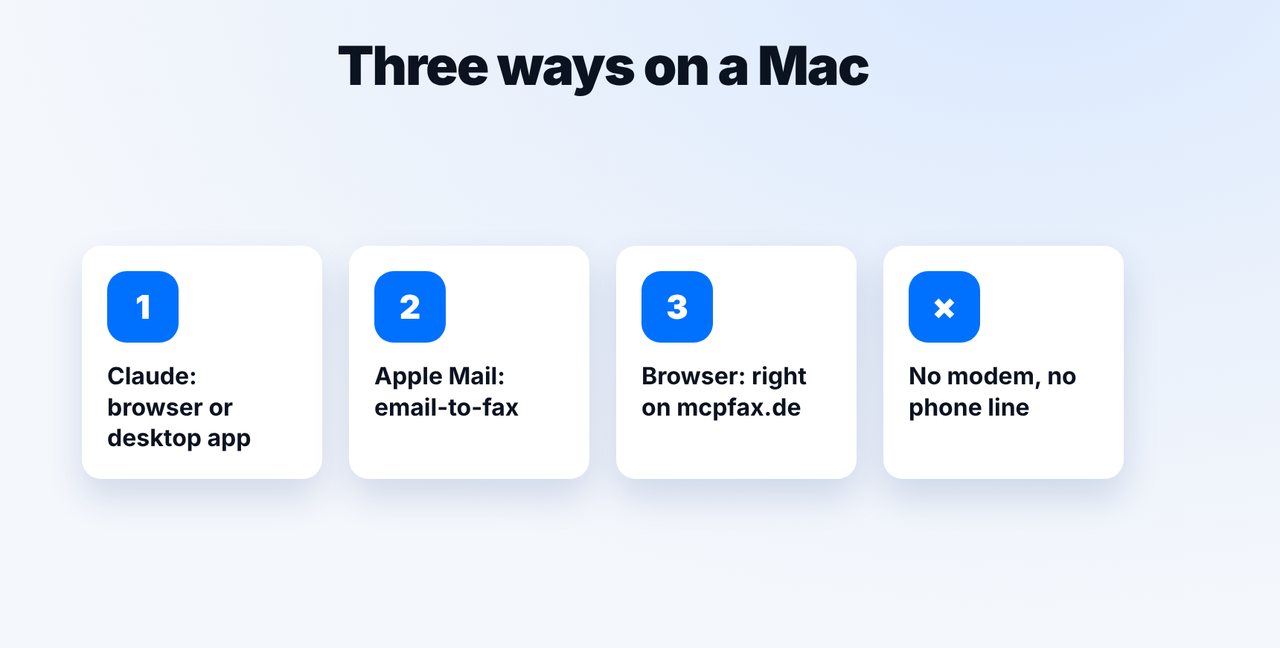
On a Mac you fax without a modem: in Claude (browser or desktop app) with the mcpfax connector, by email from Apple Mail to faxnumber@fax.mcpfax.de, or right on mcpfax.de. From €1.00 per fax, all you need is internet.
Step by step
-
1 Step 1
Choose a method
Claude in the browser or as a desktop app with mcpfax, email-to-fax from Apple Mail, or right on mcpfax.de. All methods use the same account and balance.
-
2 Step 2
Drag the PDF into the chat
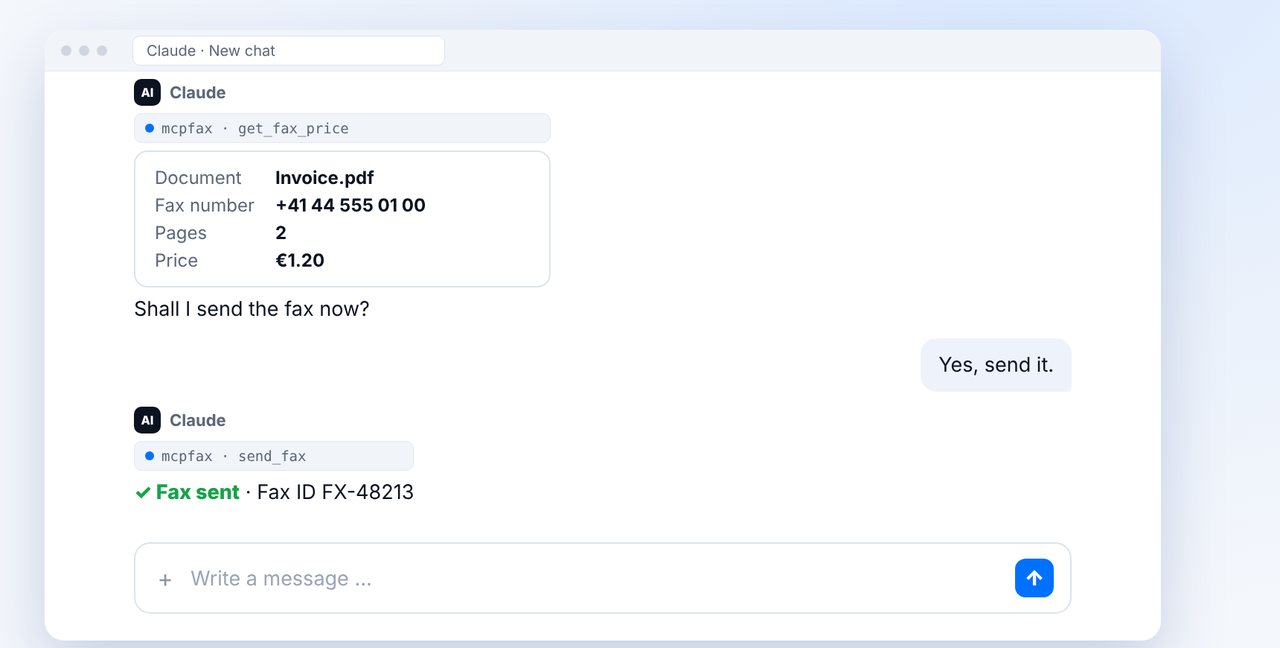
Drag the PDF from Finder into the chat, give the fax number, check pages and price, and confirm.
-
3 Step 3
Alternative: Apple Mail
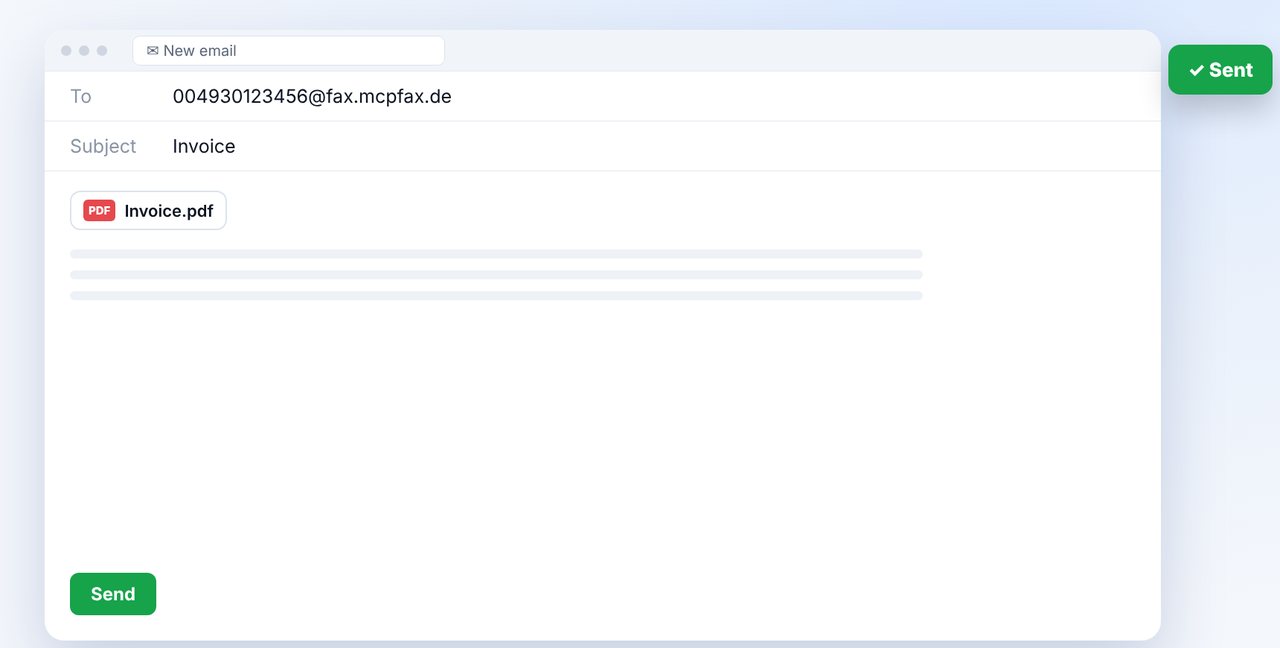
New email to the fax number with country code in front of @fax.mcpfax.de, attach the PDF, send. The sender address must be approved.
-
4 Step 4
File the transmission report
After the transmission, the transmission report arrives as a PDF by email – file it with the document.
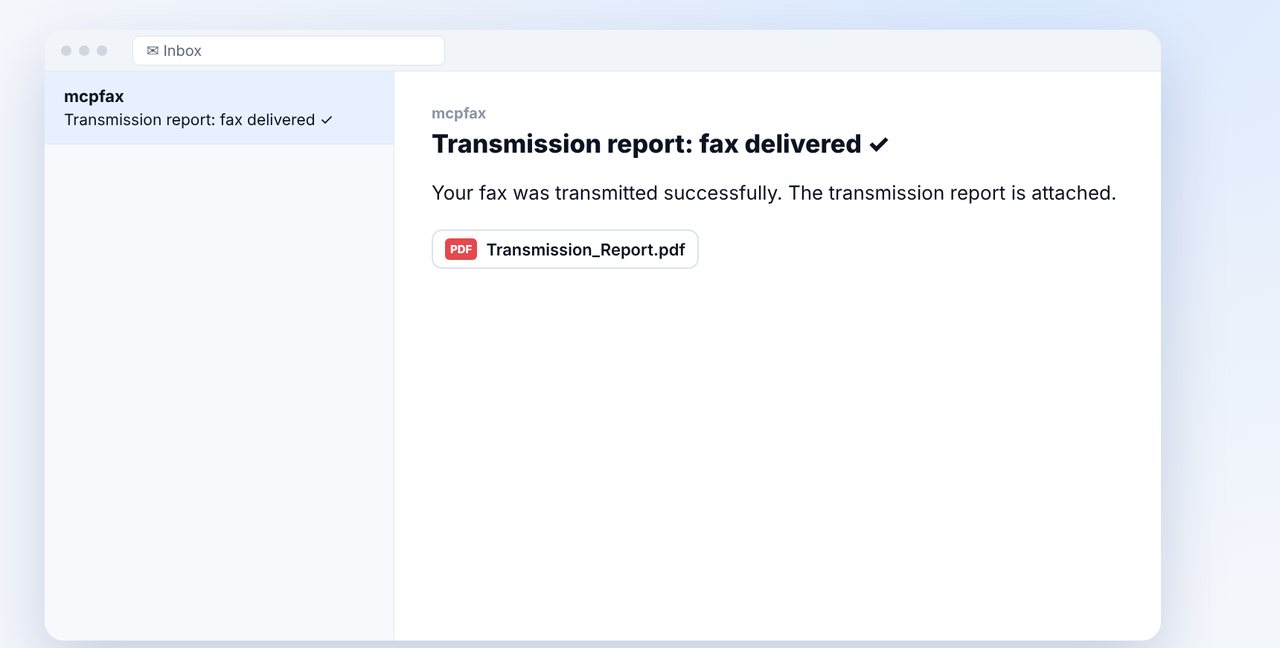
The pictures are a simplified illustration. Menu names may differ slightly depending on the version.
Video transcript
Yes, you can fax from your Mac, even without a modem and without a phone line. All you need is internet and mcpfax. Let me show you how. On a Mac you have three ways: Claude in the browser or as a desktop app, Apple Mail, or the mcpfax website directly. You set up an account once. You don't need a modem or a phone line. Drag the PDF from Finder into the chat and give the fax number. Claude shows the pages and the price. After your yes, the fax is sent, here to Switzerland, at the same price as within the EU. Prefer email? Then in Apple Mail, write to the fax number with its country code and our fax domain, as shown on screen. Attach the PDF and send. This works from any other email program too. Either way, after the transmission you receive the transmission report as a PDF by email. It's best to file it right away in your folder, together with the document. You'll find the link to mcpfax in the description. Subscribe to the channel for more guides on sending faxes.
Ready for your first fax?
Create your account in a minute, top up your balance and get started. No subscription, no monthly fee.
Create free accountFrequently asked questions
Do I need a modem or a phone line?
No. mcpfax transmits the fax for you; on your Mac you only need an internet connection.
How do I turn a document into a PDF?
On a Mac via “Print” and “Save as PDF”. You can also fax Word files (DOCX) directly.
Can I receive faxes on my Mac?
No, mcpfax only sends faxes. mcpfax does not offer fax receiving.