
How do I send a fax from Gmail?
In Gmail, write an email to faxnumber@fax.mcpfax.de (e.g. 004930123456@fax.mcpfax.de) and attach the document. First add your Gmail address as an approved sender with mcpfax – from €1.00 per fax.
Step by step
-
1 Step 1
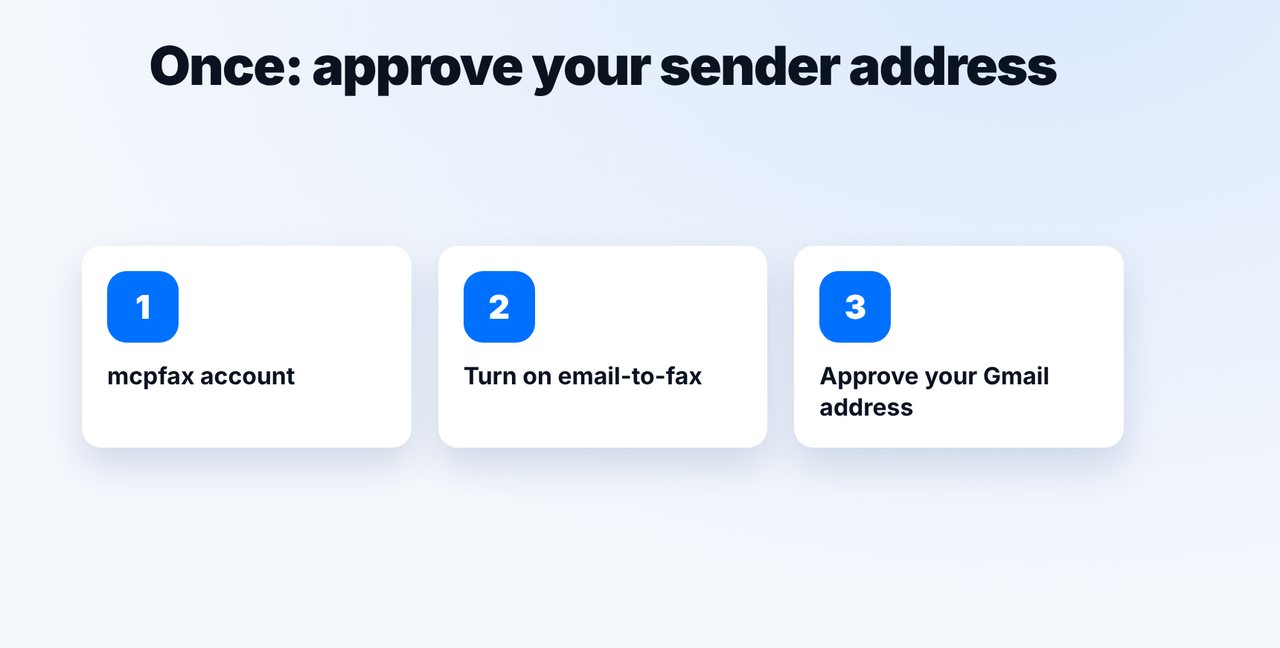
Approve your Gmail address
Create an account at mcpfax.de, turn on email-to-fax and add your Gmail address as an approved sender in the customer area.
-
2 Step 2
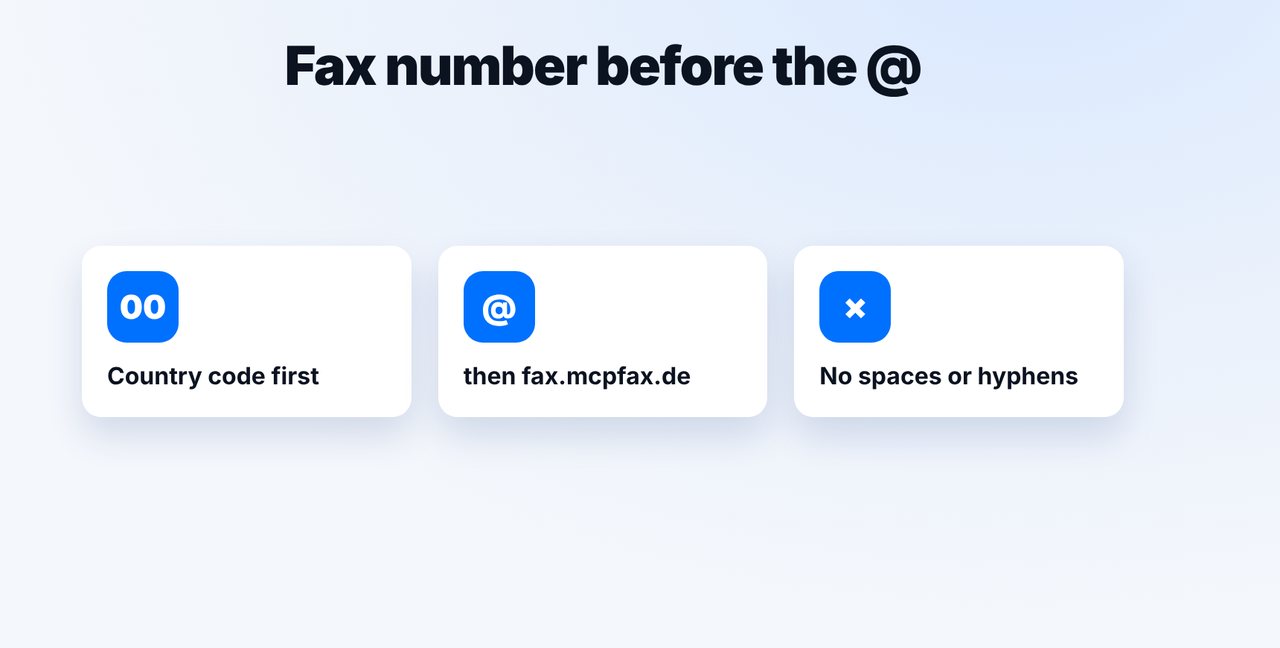
Write the address correctly
Fax number with 00 or + and the country code before the @, followed by fax.mcpfax.de – no spaces or hyphens.
-
3 Step 3
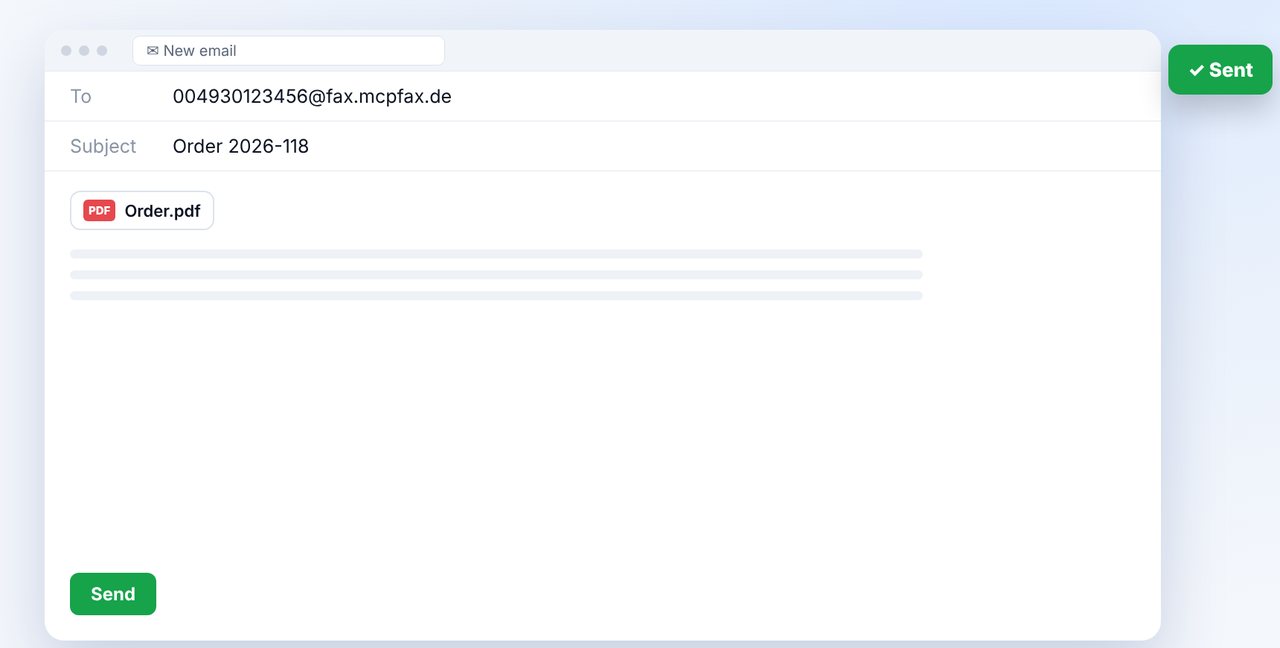
Attach the document and send
In Gmail, write a new email to this address, attach the document (PDF, DOCX, JPG, PNG, TXT) and send it.
-
4 Step 4
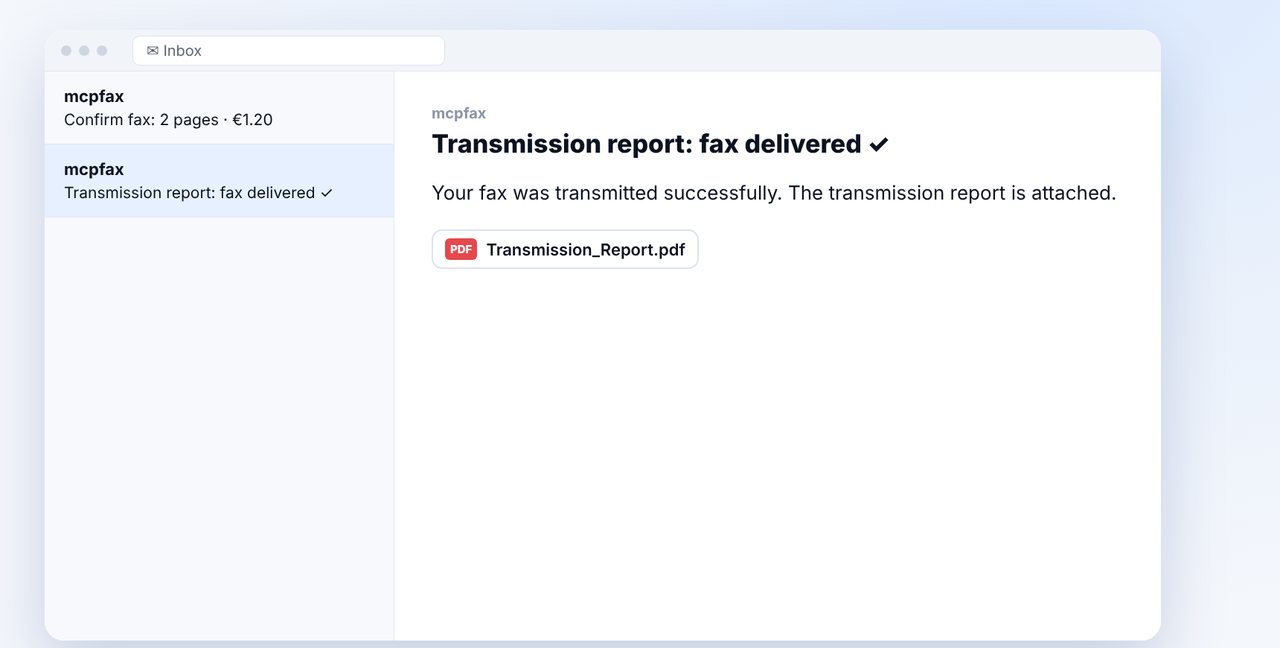
Confirm and get the report
If confirmation is turned on, you get an email with the pages, price and a button. After sending, the transmission report follows.
The pictures are a simplified illustration. Menu names may differ slightly depending on the version.
Video transcript
Yes, you can fax straight from Gmail: you simply write an email to a special fax address. Let me show you step by step how it works. Just once, you create an mcpfax account, turn on email-to-fax and add your Gmail address as an approved sender. Emails from other addresses won't be faxed. Before the at sign goes the fax number with its country code, so double zero or plus followed by the country code. After that comes the fax domain you see on screen. Now, in Gmail, write a new email to this address, attach the document and send it. The subject line will later appear in your fax history. If confirmation is turned on, you immediately get an email with the page count and price. One click on the button, and the fax is sent. After that, you receive the transmission report. Good to know: up to ten attachments fit into one fax. And without an attachment, the text of your email is simply faxed. You'll find the link to mcpfax in the description. Subscribe to the channel, and check out our video on faxing from your PC as well.
Ready for your first fax?
Create your account in a minute, top up your balance and get started. No subscription, no monthly fee.
Create free accountFrequently asked questions
Why isn't my fax from Gmail being sent?
Usually the sender address hasn't been approved or the fax number is written incorrectly (missing country code, spaces).
Does it work in the Gmail app on my phone?
Yes, in the app just like in the browser.
What happens if I don't attach anything?
Then the text of the email is faxed.