
How can a business fax without a fax machine?
Your team faxes by email to faxnumber@fax.mcpfax.de or in an AI chat, with no machine and no phone line, from €1.00 per fax with a transmission report. But note: mcpfax only sends and does not receive faxes.
Step by step
-
1 Step 1
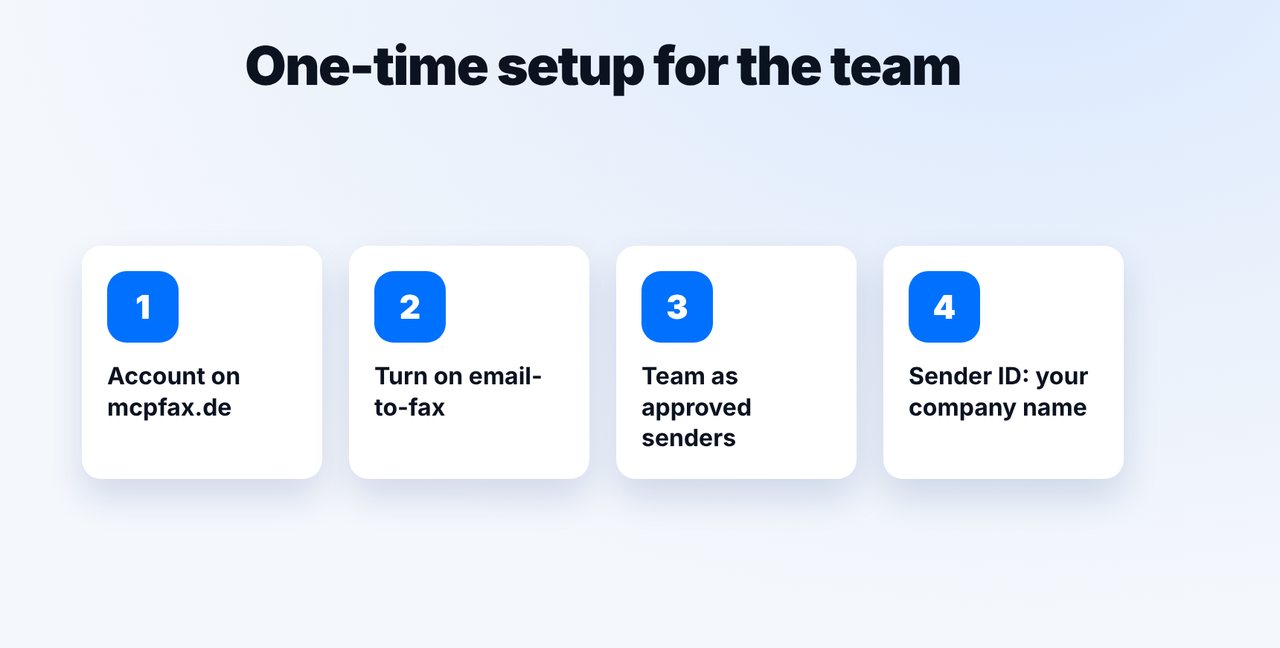
Set it up once for the team
Create an account on mcpfax.de, turn on email-to-fax and add your employees' addresses, and your scanner's if needed, as approved senders. Set your company name as the sender ID (max. 20 characters) – it appears at the top of every fax.
-
2 Step 2
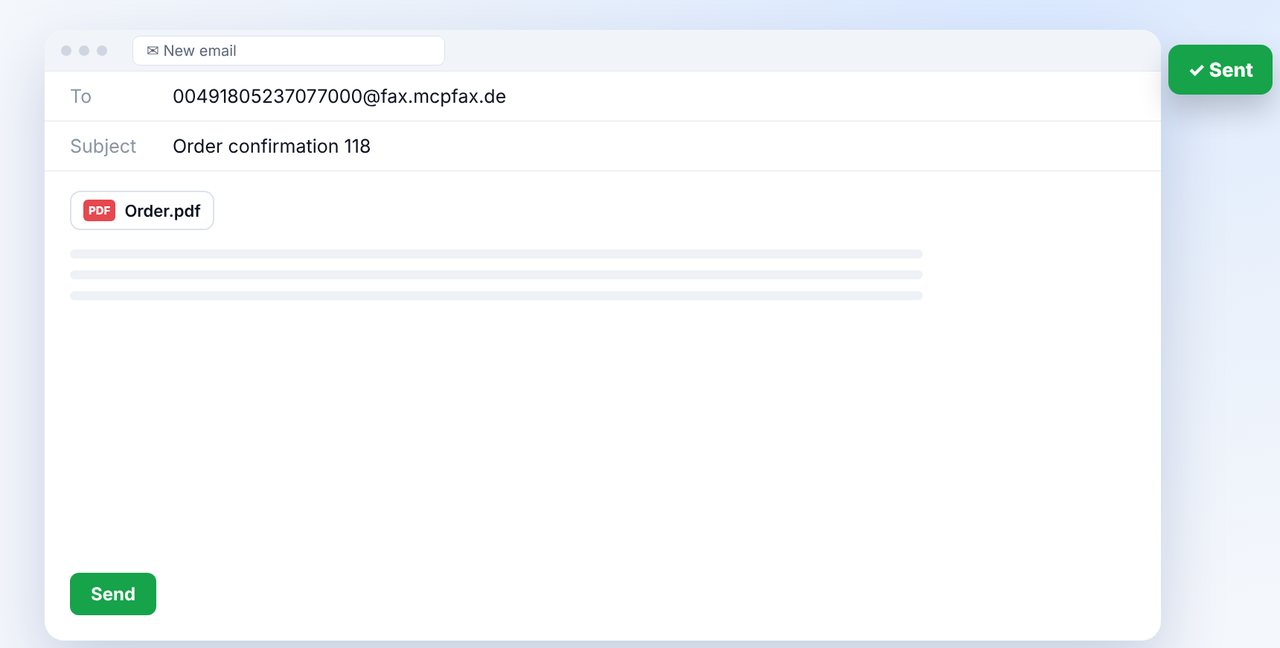
Fax from your email program
Everyone on the team writes to faxnumber@fax.mcpfax.de (with 00 and country code), attaches the document and sends – from Outlook, Gmail, Apple Mail or a phone.
-
3 Step 3
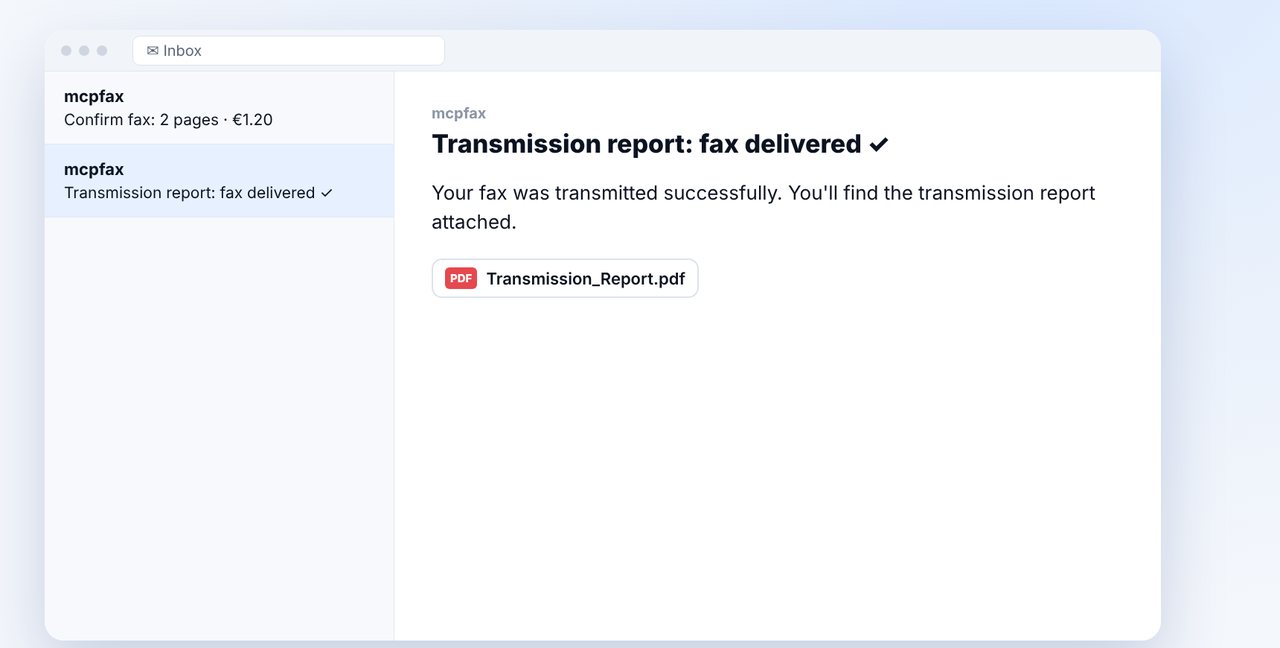
Confirm and file the report
Optionally, a confirmation email arrives before sending, with a PIN if you like. After transmission, the transmission report arrives as a PDF.
-
4 Step 4
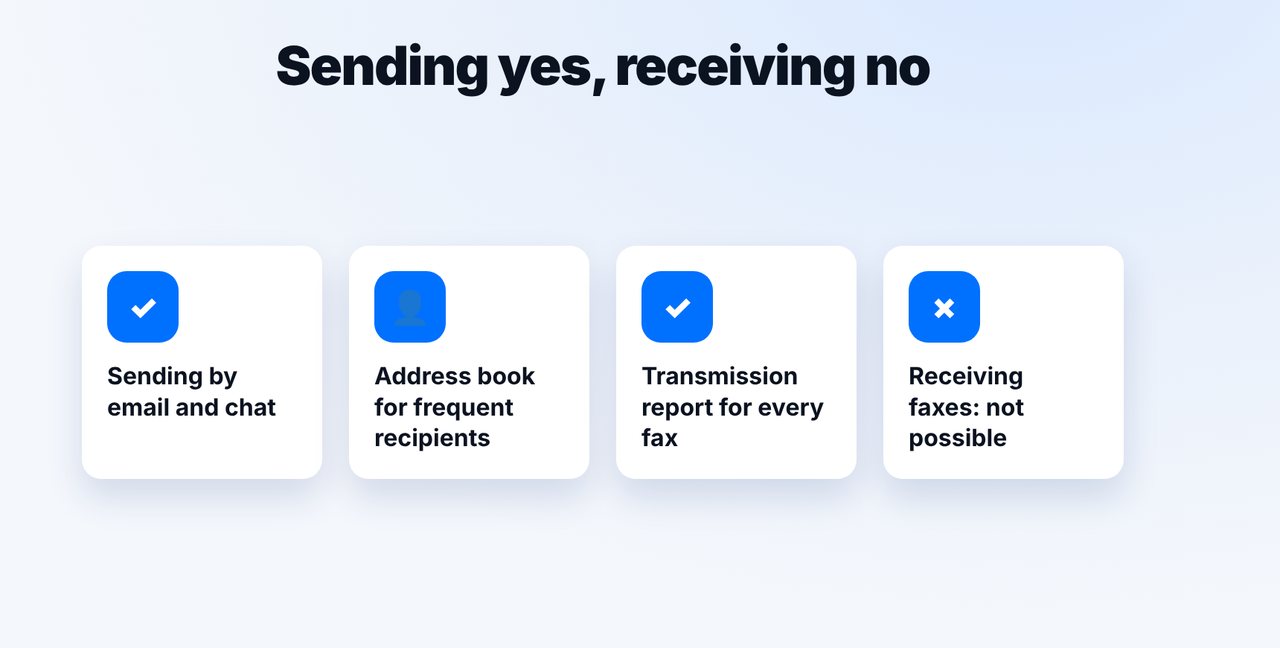
Know the limits
mcpfax has no fax number of its own and does not receive faxes. If you still receive faxes, you need a different solution for that.
The pictures are a simplified illustration. Menu names may differ slightly depending on the version.
Video transcript
Yes, your business can get rid of its fax machine and still send faxes, by email or in an AI chat. One thing up front: mcpfax only sends, receiving is not possible. Let me show you how your team works with it. Create an account, turn on email-to-fax and add your employees' email addresses as approved senders. Set your company name as the sender ID, and it will then appear at the top of every fax. After that, everyone on the team faxes from their usual program, whether Outlook, Gmail or Apple Mail: fax number in front of the fax address shown on screen, attach the document, send. If you like, you can switch on a confirmation email before every fax, with a PIN if you want. After transmission, the transmission report arrives as a PDF for you to file away. Save frequent recipients as contacts in the chat. But keep in mind: mcpfax has no fax number of its own and does not receive faxes. If you still get faxes, you'll need a different solution for that. You'll find the link to mcpfax in the description. We explain email-to-fax in detail in a separate video. Subscribe to the channel.
Ready for your first fax?
Create your account in a minute, top up your balance and get started. No subscription, no monthly fee.
Create free accountFrequently asked questions
Can my business receive faxes with mcpfax too?
No. mcpfax only sends faxes and does not assign fax numbers. For receiving, you need a different solution.
Who on the team can fax?
Every address you add as an approved sender in the customer area, including a scanner's address.
Is there a monthly fee?
No. You top up your balance and pay per fax only, in zone 1 from €1.00 for the first page.
Does our company name appear on the fax?
Yes, if you set it as the sender ID in your account (max. 20 characters). It appears at the top of every fax.
How do we keep records of sent faxes?
After each fax, a transmission report arrives as a PDF by email, and it is also available for download in the customer area.