
Take a photo of a paper document and fax it from your phone
Photograph each page in bright light, straight from above, and send the photos in the Claude app with the fax number. You see the pages and price beforehand – 3 pages in zone 1 cost €1.40, for example.
Step by step
-
1 Step 1
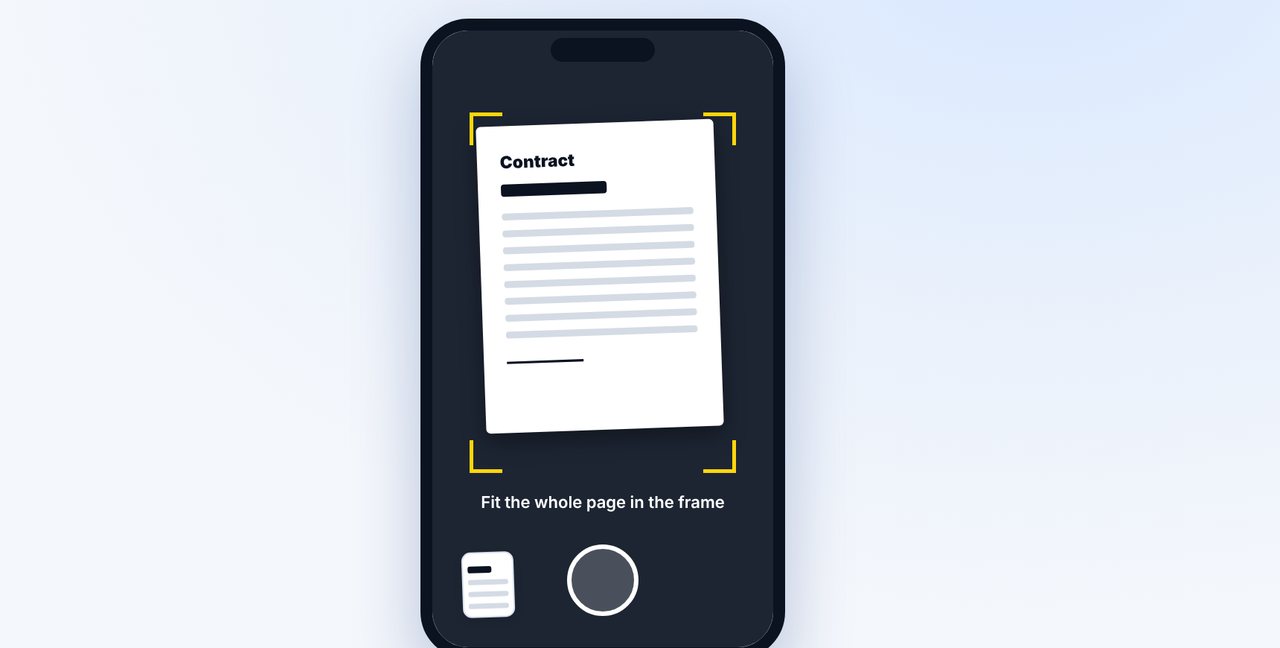
Photograph the page
Open a chat in the Claude app, tap the plus button and photograph the sheet lying flat, from above.
-
2 Step 2
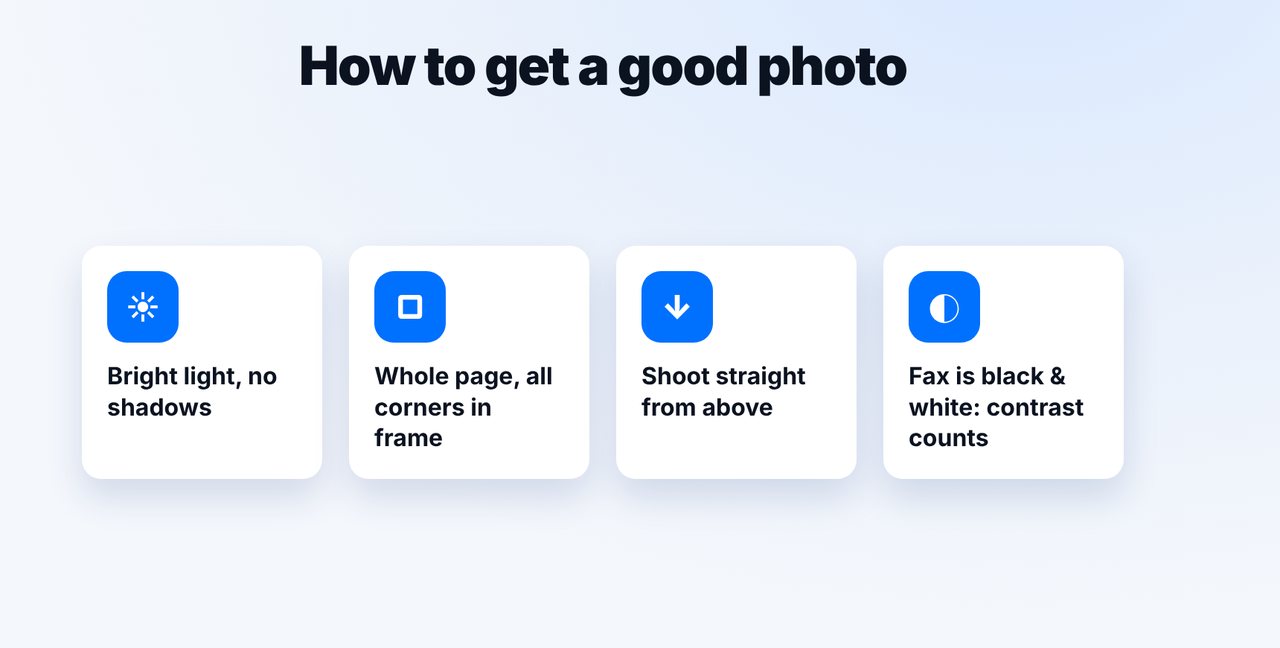
Mind the light and contrast
Bright light without shadows, all four corners in the frame. A fax is black and white – colors become grayscale, so good contrast matters.
-
3 Step 3
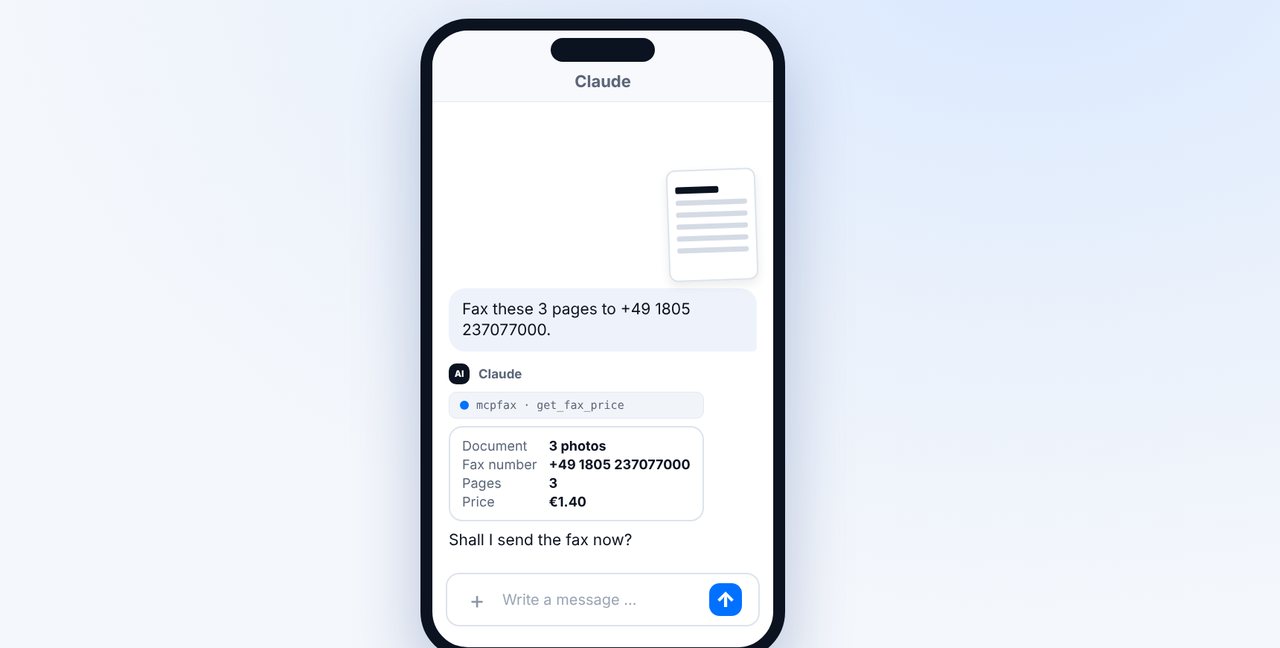
Send all pages with the fax number
Photograph each page separately, send the photos in the right order and give the fax number. Claude shows the pages and price.
-
4 Step 4
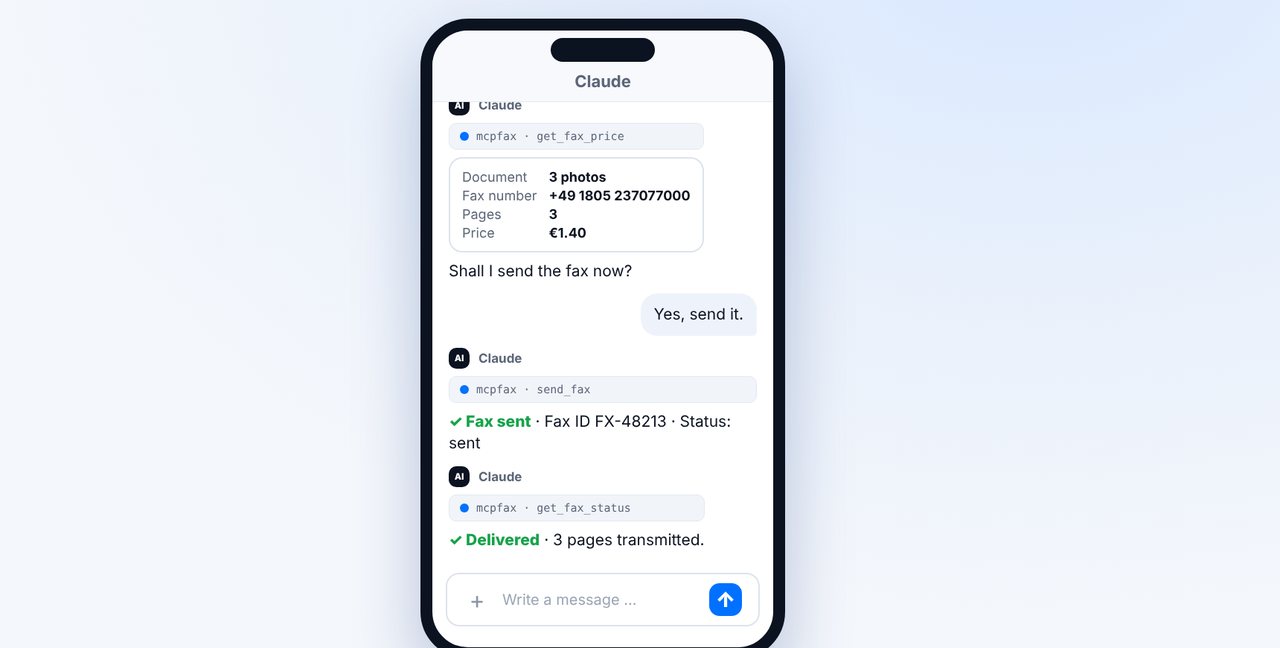
Confirm
After your “Yes”, the fax is sent. “Delivered” means all pages were transmitted in full.
The pictures are a simplified illustration. Menu names may differ slightly depending on the version.
Video transcript
Yes, you can simply take a photo of a paper document with your phone and fax it, with no scanner at all. What matters when you take the photo is what I'll show you now, step by step. Open a chat in the Claude app, tap the plus button and choose the camera. Lay the sheet flat on the table and take the photo from directly above. Three things make the difference: bright light without shadows, the whole page with all four corners in the frame, and the camera held straight above it. A fax is black and white, so contrast is what counts. Several pages? Photograph each page separately, in the right order, and give the fax number. Claude shows you the price, one euro forty for three pages. Confirm with yes, and the fax is on its way. As soon as the status shows delivered, all three pages have been transmitted in full. If the document already exists as a PDF, it's better to attach the file instead. And by the way, photos can also be faxed by email to the fax address, as a JPG or PNG attachment. You'll find the link in the description. Subscribe to the channel, so you won't miss any more guides all about faxing.

Ready for your first fax?
Create your account in a minute, top up your balance and get started. No subscription, no monthly fee.
Create free accountFrequently asked questions
Do I need a scanner?
No. A phone photo is enough; mcpfax turns it into a fax page.
Can I photograph several pages?
Yes. Photograph each page separately and keep them in order. A fax can have up to 100 pages.
Are colors transmitted?
No, fax is black and white. Colors become grayscale, which is why good contrast matters.
Does it work by email too?
Yes. Attach the photos as JPG or PNG to an email to the fax address – up to 10 attachments, 15 MB in total.