
How do I send a fax from Outlook?
In Outlook, write an email to faxnumber@fax.mcpfax.de (number with 00 or + and the country code) and attach the document. It works in Outlook on desktop, on the web and in the app; a fax costs from €1.00, with no subscription.
Step by step
-
1 Step 1
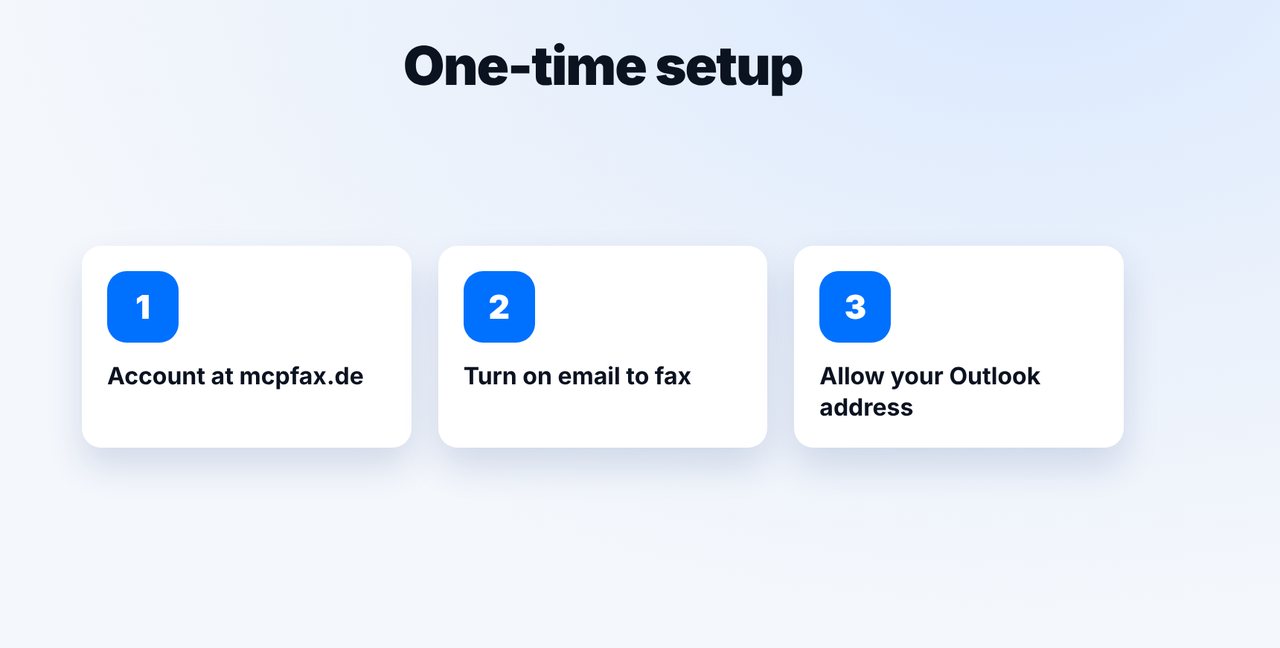
One-time setup: allow your Outlook address
Create an account at mcpfax.de, turn on email to fax in your customer area and add your Outlook address as an allowed sender.
-
2 Step 2
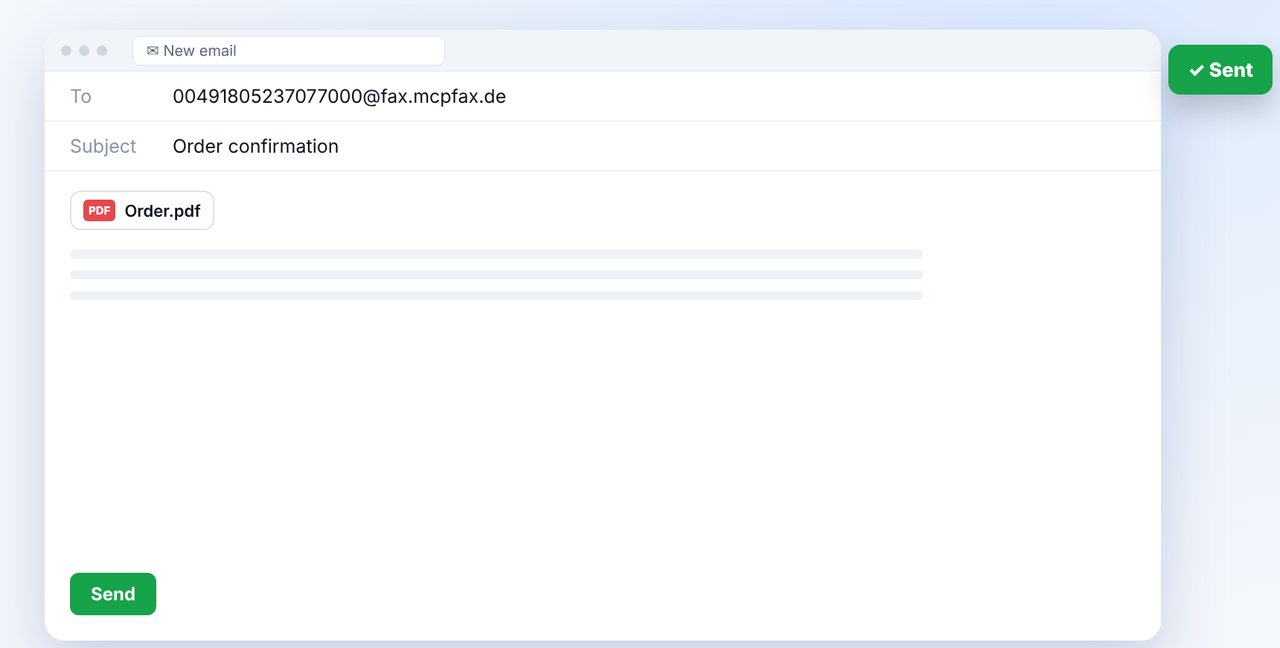
New email to the fax address
In the “To” field, type the fax number with the country code before the @, followed by fax.mcpfax.de – no spaces. Example: 004930123456@fax.mcpfax.de.
-
3 Step 3
Attach the document and send
Attach the document (PDF, DOCX, JPG, PNG or TXT) and send the email. The subject line appears in your fax history.
-
4 Step 4
Confirm and get your transmission report
If confirmation is enabled, you receive an email with the page count and price. One click and the fax goes out; the transmission report arrives by email.
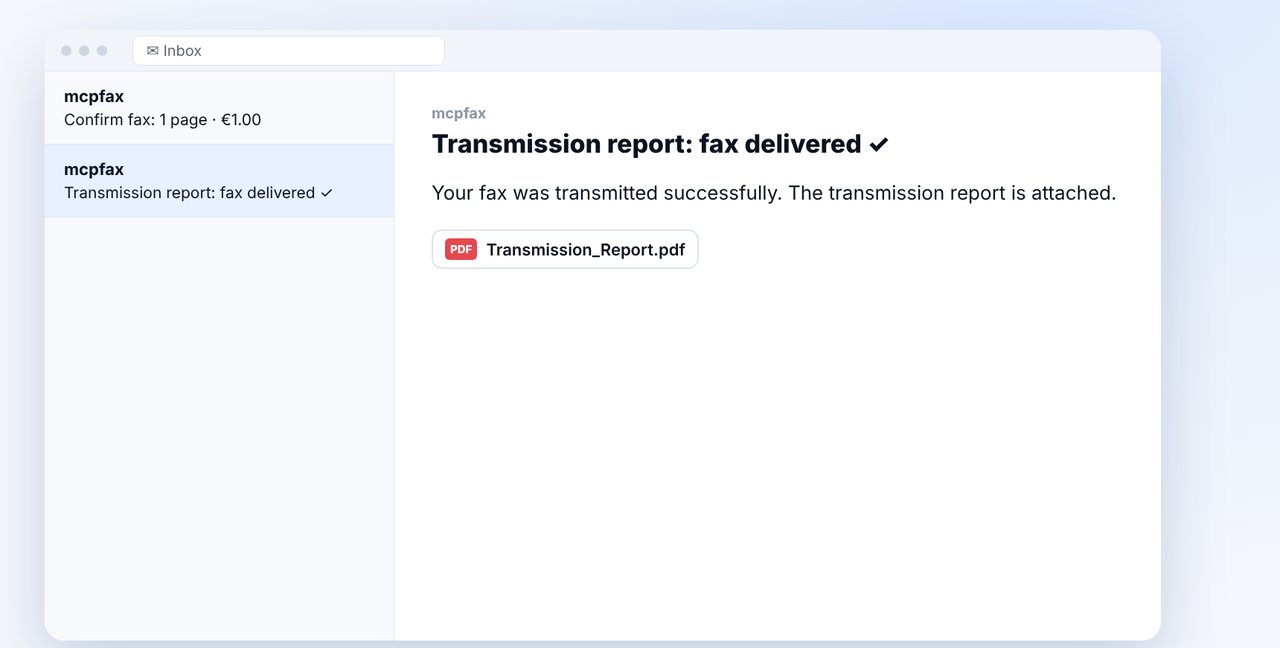
The pictures are a simplified illustration. Menu names may differ slightly depending on the version.
Video transcript
Yes, you can send a fax straight from Outlook, whether on your computer, in the browser or in the Outlook app on your phone. All you need is email to fax from mcpfax. Let me show you how it works, step by step. Just once, you create an account with mcpfax, turn on email to fax in your customer area and add your Outlook address as an allowed sender. Emails from any other address won't be faxed, which keeps your account safe. Now write a new email in Outlook. In the To field, type the fax number with the country code, followed by the fax address you see on screen. Attach your document, hit send, and that's it. If confirmation is enabled, you immediately get an email showing the page count and the price. One click, and the fax goes out. Afterwards, the transmission report lands right in your Outlook inbox. It works exactly the same everywhere: in Outlook on your computer, in Outlook on the web and in the Outlook app on your phone. Save the fax address as a contact, and next time it's even quicker. You'll find the link to mcpfax in the description. Subscribe to the channel, where we also show you how to fax a PDF.
Ready for your first fax?
Create your account in a minute, top up your balance and get started. No subscription, no monthly fee.
Create free accountFrequently asked questions
Does this also work with Outlook on the web and in the app?
Yes. Email to fax works from any email program, including Outlook on the web and the Outlook app on your phone.
Why wasn't my email faxed?
Usually the sender address isn't listed as an allowed sender, or the number contains spaces. Check both in your customer area and in the address.
Can I receive faxes in Outlook?
No. mcpfax only sends faxes; there is no fax number for receiving.
How much does a fax from Outlook cost?
The same as any fax with mcpfax: in zone 1 (including the EU, UK and US) €1.00 for the first page and €0.20 for each additional page. No subscription.