
How do I fax a Word document?
Attach the DOCX file in a chat with Claude or to an email to faxnumber@fax.mcpfax.de – mcpfax converts it to a PDF automatically and faxes it. In the EU, UK, US and other zone 1 countries the first page costs €1.00, each additional page €0.20.
Step by step
-
1 Step 1
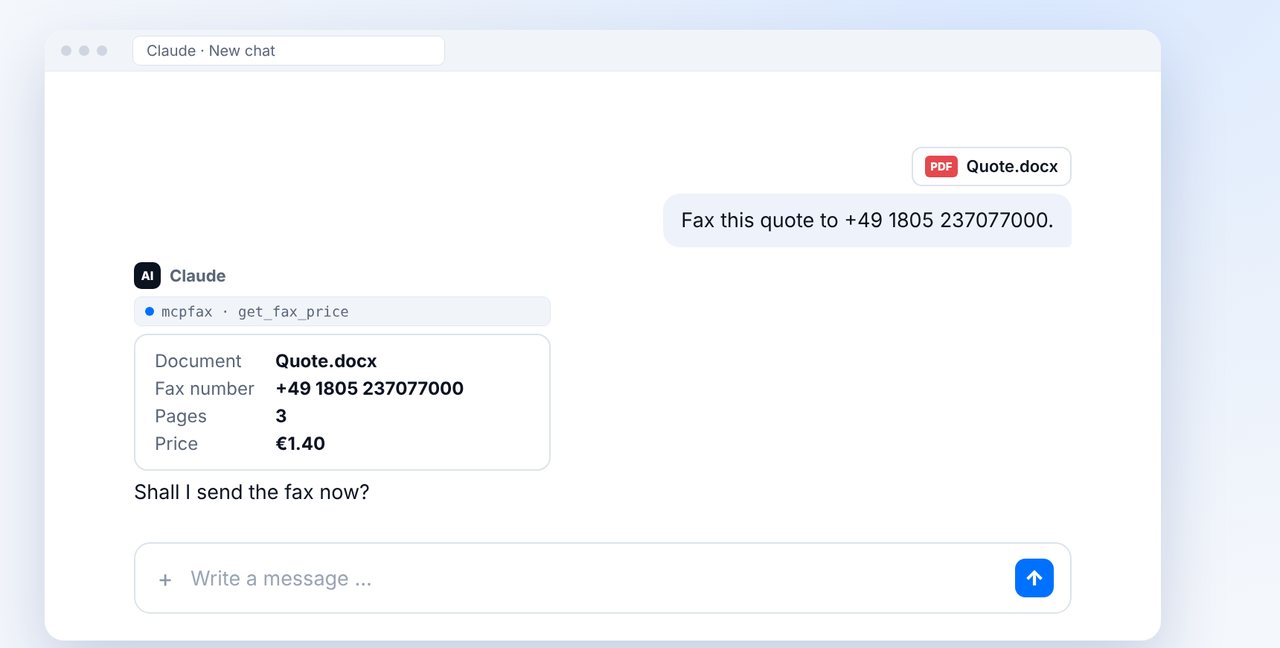
Attach the Word file
Attach the DOCX file in a chat with Claude and give the fax number with its country code. No need to convert to PDF – mcpfax does that for you.
-
2 Step 2
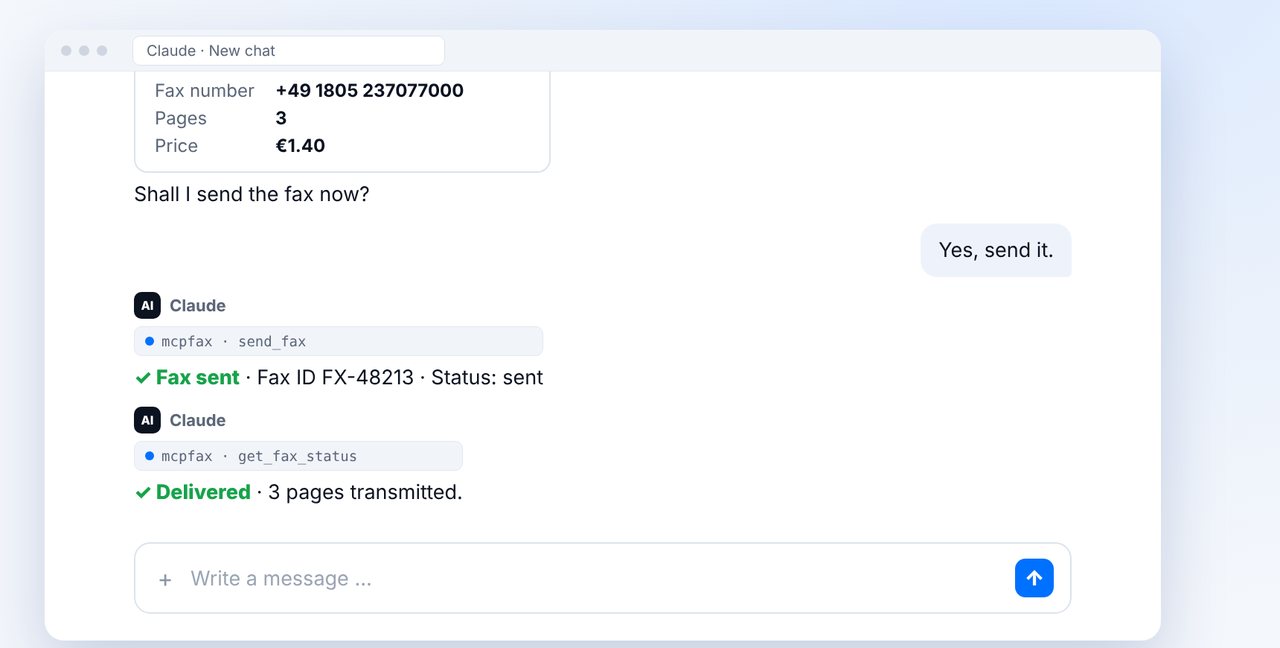
Check the price and confirm
Claude shows the document, fax number, pages and price. The fax only goes out after your “Yes”; you can ask for the status “delivered” right in the chat.
-
3 Step 3
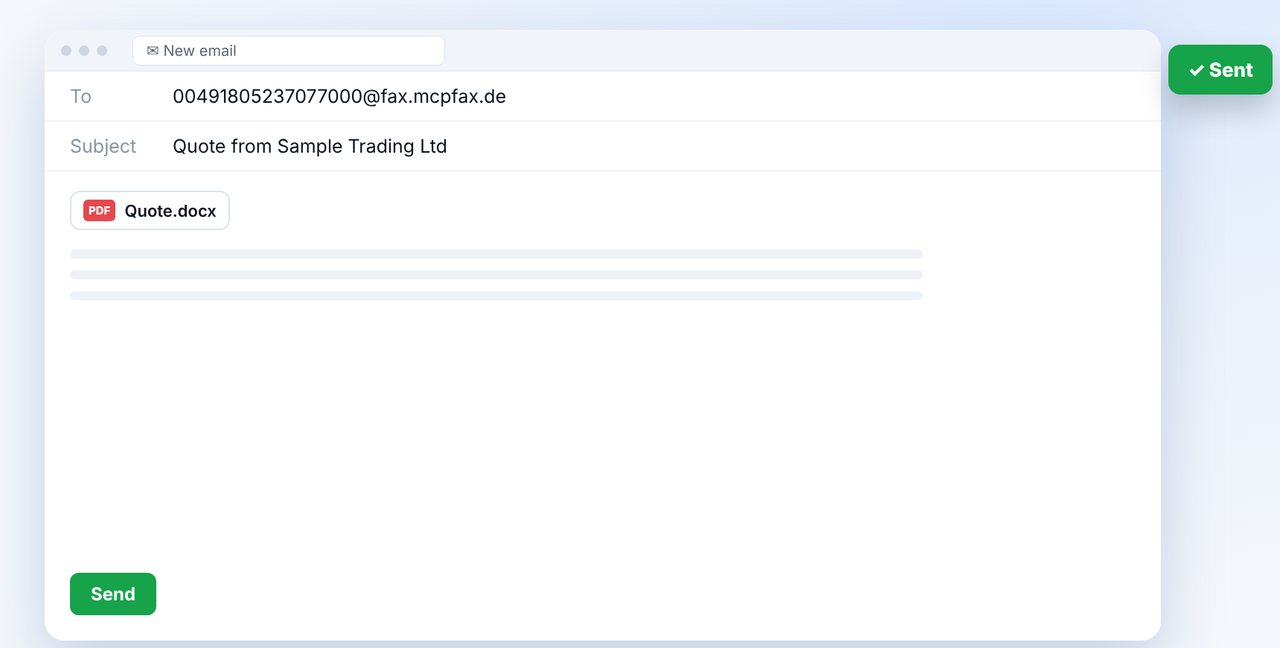
Alternative: by email
Write an email to faxnumber@fax.mcpfax.de, e.g. 00491805237077000@fax.mcpfax.de, and attach the Word file – from Outlook, Gmail or any other program.
-
4 Step 4
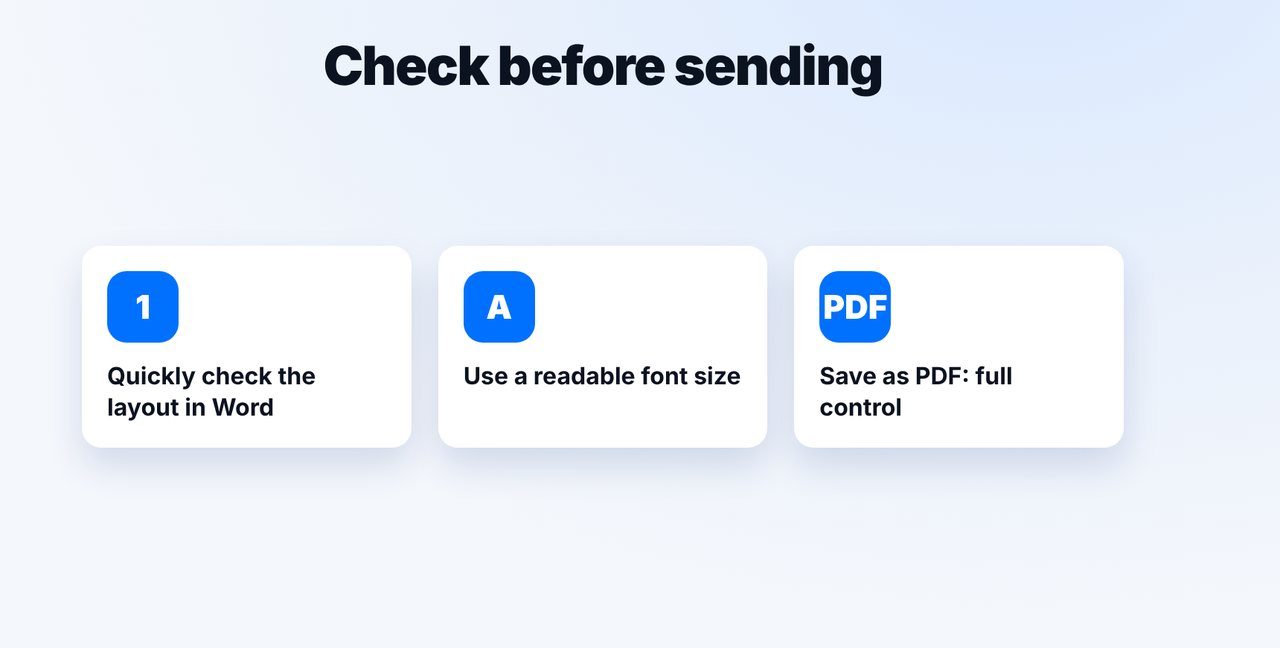
Quickly check the layout
A fax is black and white. Check font size and layout; if you want to see exactly what arrives, save it as a PDF yourself and fax that.
The pictures are a simplified illustration. Menu names may differ slightly depending on the version.
Video transcript
Yes, you can fax a Word document directly, without printing it or converting it to a PDF yourself. You simply attach the file. Let me show you how. mcpfax automatically converts your Word document into a PDF and then faxes it. Just keep in mind: a fax is black and white, so colors turn into shades of gray. In the chat with Claude, you attach the Word file and give the fax number. Before sending, Claude shows you the document, the page count and the price, here three pages for one euro forty. Confirm with yes, and the fax goes out. As soon as all pages have been transmitted, the status changes to delivered, and the transmission report arrives by email. You can also skip the chat and use email: write to the fax address shown on screen and attach the Word file. That works from Outlook, Gmail or any other email program. One tip: take a quick look at the layout first. If you want to see exactly what will arrive, save the file as a PDF yourself and fax that instead. You'll find the link to mcpfax in the description. Subscribe to the channel, where we also show you how to fill out a PDF form and fax it.
Ready for your first fax?
Create your account in a minute, top up your balance and get started. No subscription, no monthly fee.
Create free accountFrequently asked questions
Do I have to convert the Word document to PDF first?
No. You can attach the DOCX file directly; mcpfax converts it to a PDF automatically.
Will the fax look exactly like it does in Word?
Mostly, but a fax is black and white: colors become grayscale. To be completely sure, save it as a PDF yourself first.
How large can the file be?
Up to 15 MB and at most 100 pages per fax. By email you can send up to 10 attachments, 15 MB in total.
Does it work without Claude?
Yes: by email-to-fax or right on mcpfax.de (“Send a fax in 3 steps”), there even without an account – upload the document, enter the fax number, see the price, send.
How much does a 3-page Word document cost?
Within the EU, UK, US and other zone 1 countries €1.40: €1.00 for the first page and €0.20 for each additional one. The price is shown before sending.