
How to fax your pension provider or the Pension Service
Write an email to faxnumber@fax.mcpfax.de (number with 00 and country code) and attach your PDF. mcpfax faxes it to your pension provider or the Pension Service, from €1.00 for the first page, with a transmission report.
Step by step
-
1 Step 1
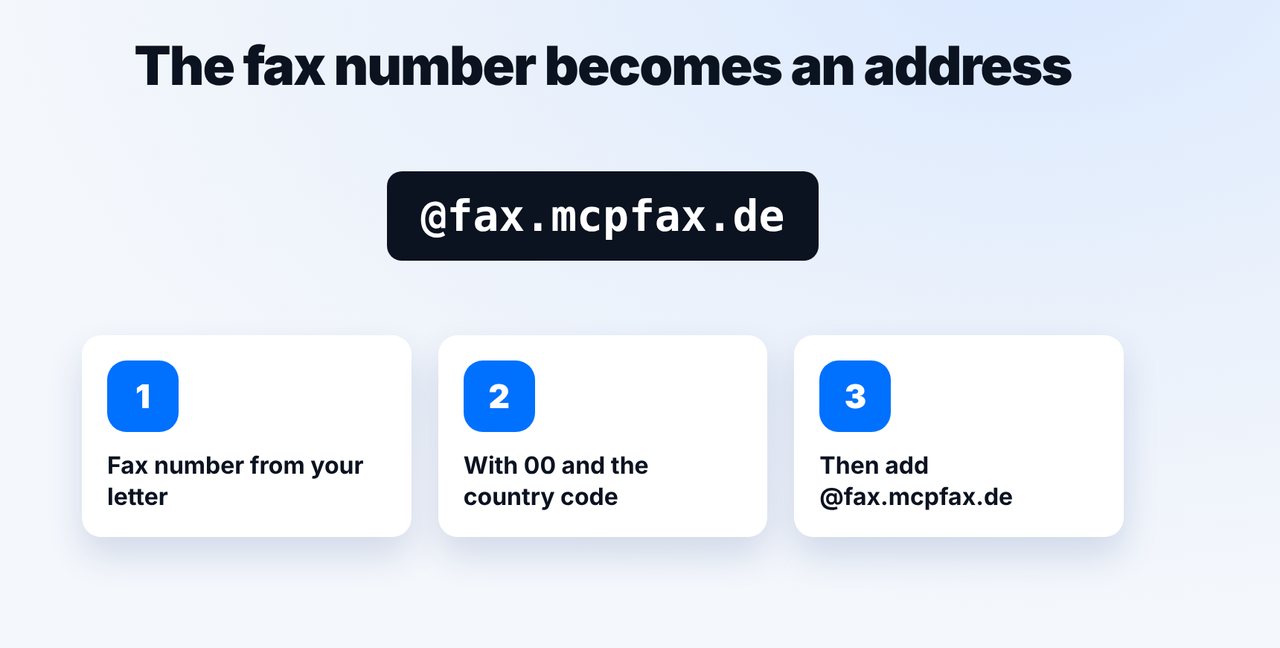
Build the recipient address
Take the fax number from your letter, write it with 00 and the country code and add @fax.mcpfax.de, e.g. 00442079460100@fax.mcpfax.de.
-
2 Step 2
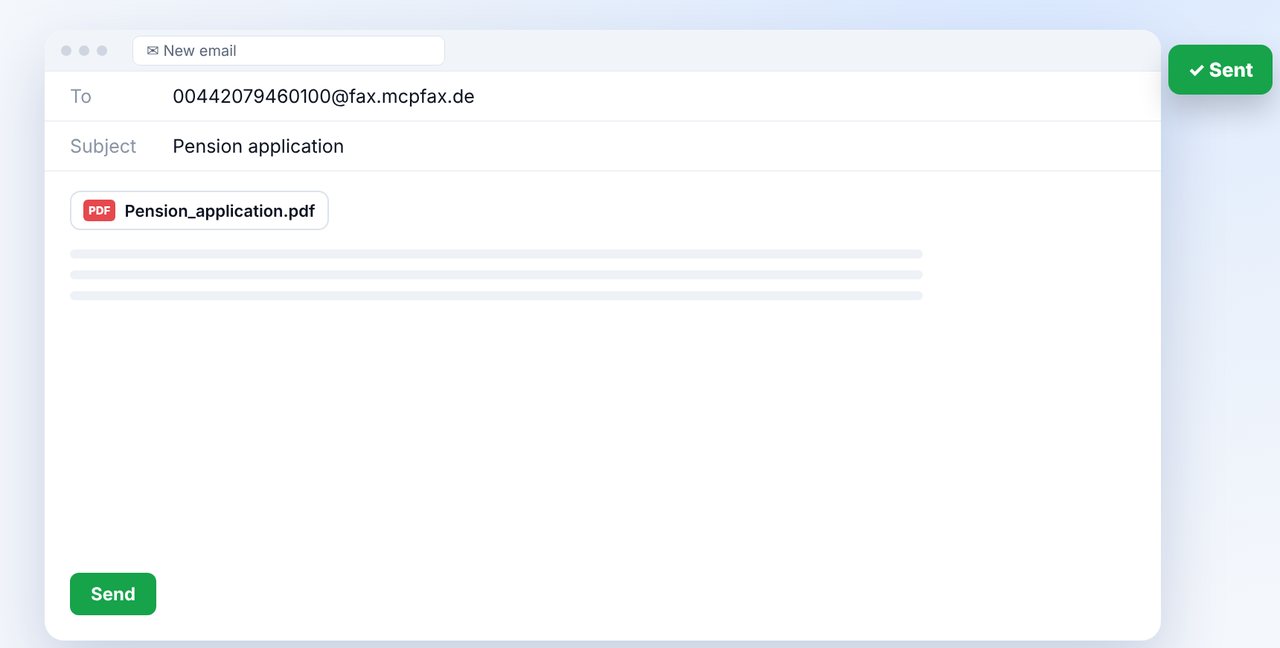
Send the email with attachment
Attach the application as a PDF, Word file or photo and send it. The subject appears in your fax history.
-
3 Step 3
Confirm, if enabled
If confirmation is turned on, you get an email with pages and price. One click, and the fax goes out.
-
4 Step 4
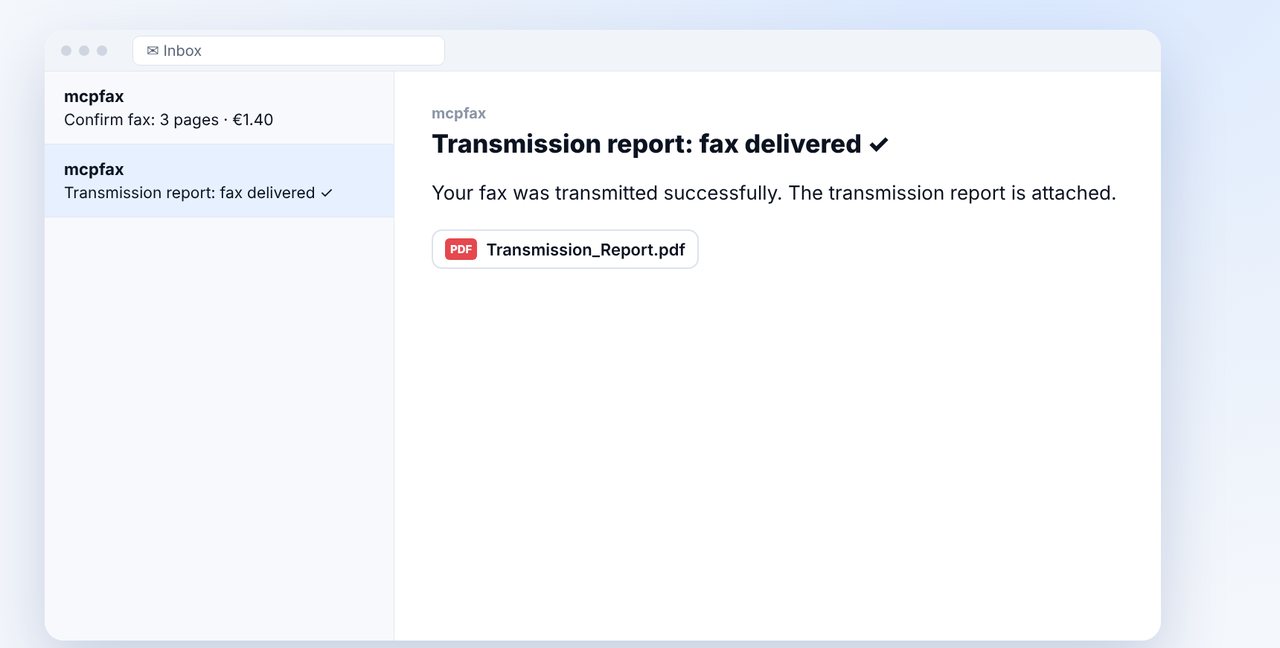
Keep the transmission report
After the transmission, the transmission report arrives as a PDF. Keep it together with your application.
The pictures are a simplified illustration. Menu names may differ slightly depending on the version.
Video transcript
Yes, you can fax applications and documents to your pension provider or the Pension Service without a fax machine, even simply by email. Let me show you how. Take the fax number from your most recent letter from the pension office. Write it with the country code, starting with zero zero, and add the ending shown on screen. That's your recipient address. Write a new email to this address, attach the application as a PDF and send it. A clear subject line helps, because it appears in your fax history later. If confirmation is turned on, you immediately get an email with the pages and the price. One click, and the fax goes out. After the transmission, you receive the transmission report as a PDF. Important: your email address must be listed as an approved sender in your customer area beforehand. And write your reference number on every page. You'll find the link to mcpfax in the description. Prefer faxing in the chat? There's a guide for that on our channel too.
Ready for your first fax?
Create your account in a minute, top up your balance and get started. No subscription, no monthly fee.
Create free accountFrequently asked questions
Do I have to register first?
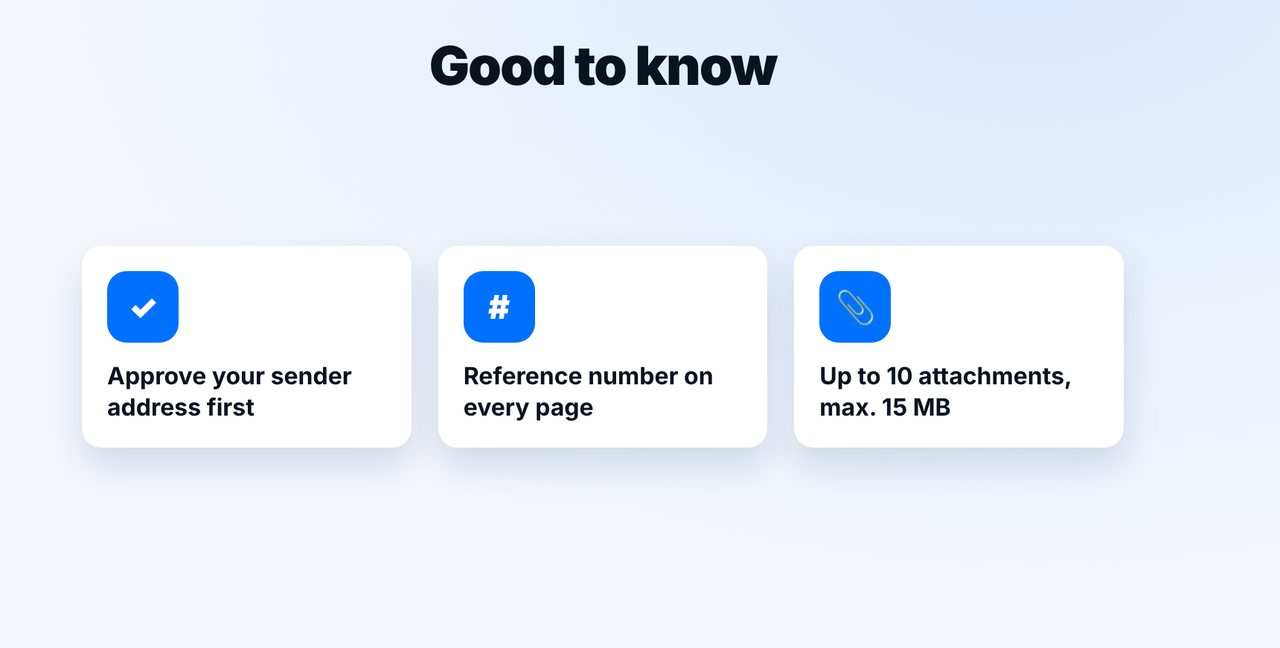
Yes. You need an mcpfax account with balance, and your email address must be listed as an approved sender in your customer area.
How many attachments can the email have?
Up to 10 attachments, max. 15 MB in total, as PDF, DOCX, JPG, PNG or TXT.
Does it work without email?
Yes. You can have the document faxed in a chat with Claude or ChatGPT, or upload it right on mcpfax.de in the browser, there even without an account.