
My printer can't fax – now what?
Scan the document (or take a photo with your phone) and send the PDF with mcpfax in the chat or by email. If your printer supports scan to email, it can send straight to faxnumber@fax.mcpfax.de, as long as its sender address is allowed.
Step by step
-
1 Step 1
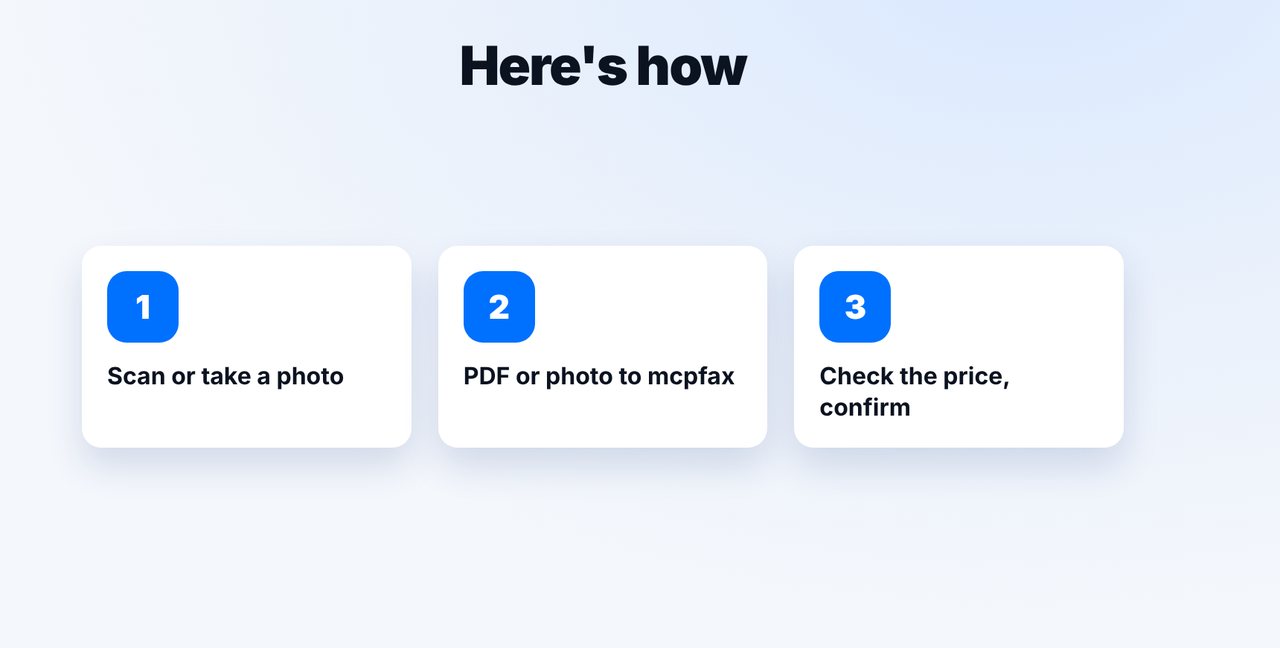
Scan or photograph
Scan the document as a PDF with your printer or take a photo with your phone.
-
2 Step 2
Send it in the chat
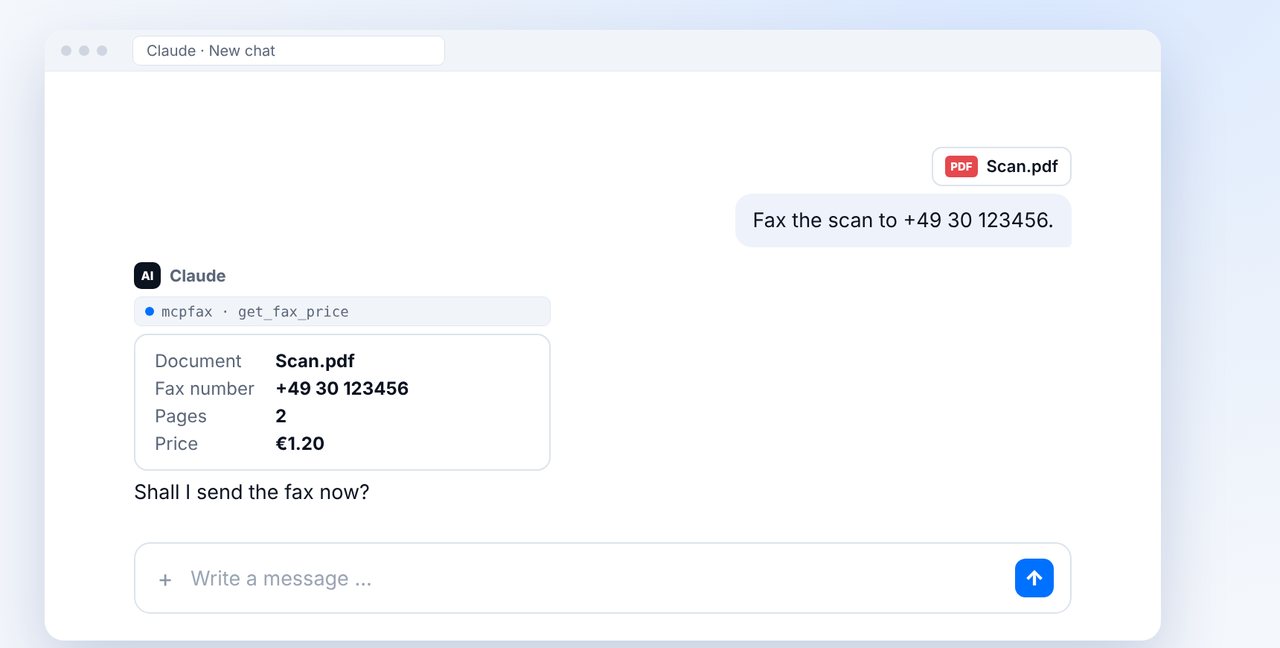
Drag the scan into your chat with Claude and give the fax number. You see the pages and price beforehand.
-
3 Step 3
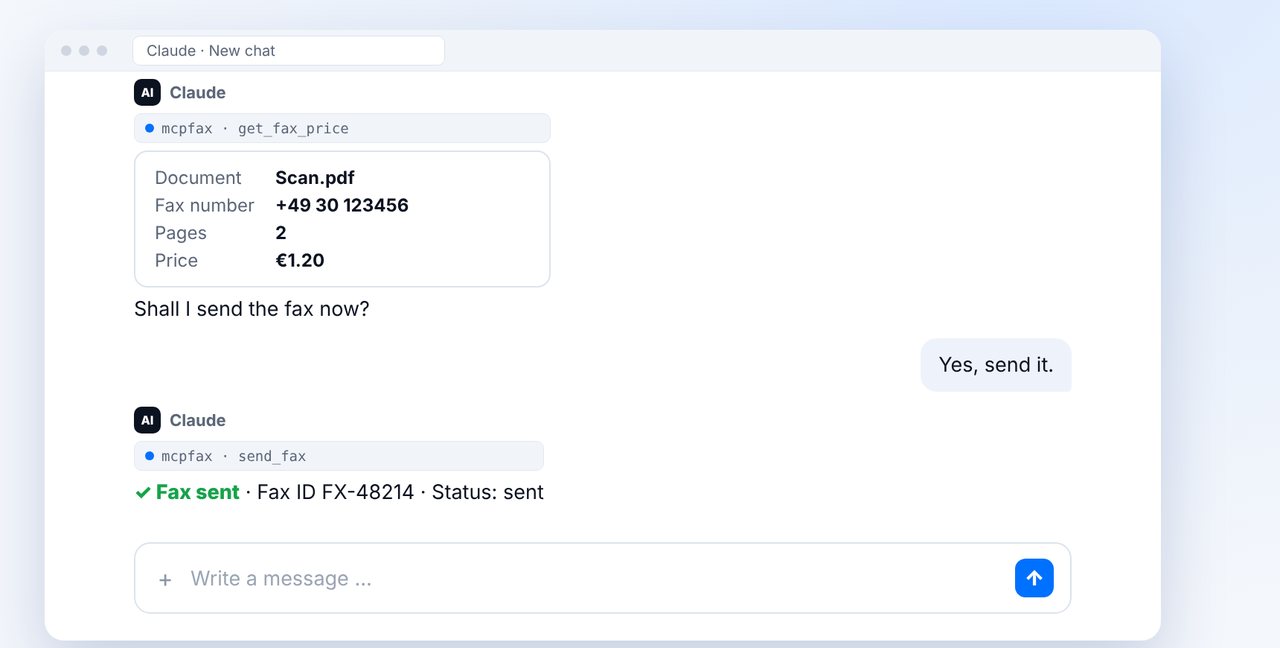
Confirm
After your “Yes”, the fax is sent; you receive the transmission report by email.
-
4 Step 4
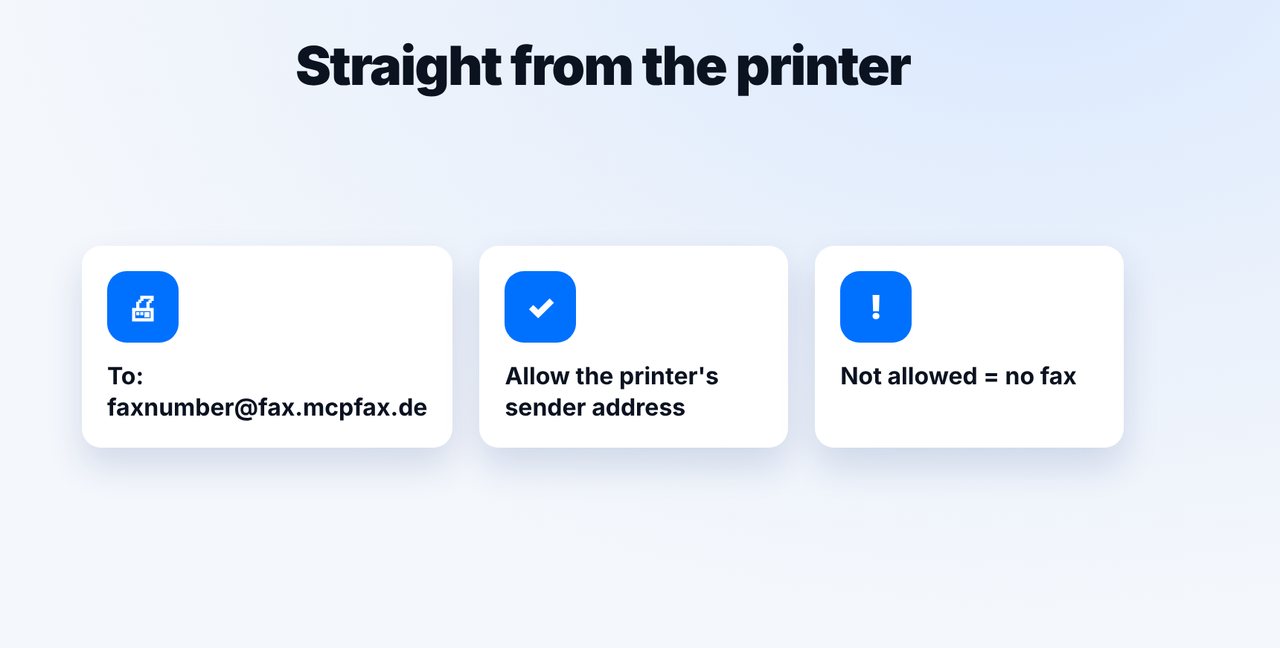
Or: scan to email
Enter faxnumber@fax.mcpfax.de as the destination and allow the printer's sender address in your customer area.
The pictures are a simplified illustration. Menu names may differ slightly depending on the version.
Video transcript
Your printer can't send faxes? No problem: scan the document or take a photo of it, and then send it over the internet with mcpfax. Let me show you how it works. There are three steps. First, you scan the document with your printer or take a photo with your phone. Then you hand the file over to mcpfax. Finally, you check the price and confirm. On your computer, drag the scanned PDF into the chat and give the fax number. Claude shows the pages and the price and asks whether it should be sent. Once you confirm, the fax is sent. Afterwards, you get the transmission report as a PDF by email, for your records. If your printer supports scan to email, you can even send it directly: just enter the fax address as the destination. What matters is that the printer's sender address is allowed in your mcpfax account. You'll find the link to mcpfax in the description. Subscribe to the channel, where we also explain email to fax in detail.

Ready for your first fax?
Create your account in a minute, top up your balance and get started. No subscription, no monthly fee.
Create free accountFrequently asked questions
Do I need a new printer with fax?
No. Any scanner or a phone photo is enough; the fax goes out over the internet.
Why doesn't my scan to email arrive as a fax?
Usually the printer's sender address isn't listed as an allowed sender. Without that, nothing is faxed.
Can I send the scan without Claude?
Yes. Upload the PDF directly at mcpfax.de (“Send a fax in 3 steps”), even without an account, or send it by email.
Can the printer then receive faxes too?
No. mcpfax only sends faxes; receiving isn't possible.